
Starting a chat
On this page
Chat always happens inside a workspace, so the first step is to launch one. Open the workspace selector at the top of the sidebar, pick the workspace you want to work in, and the home screen loads with a centered input box asking How can I help you today? — type your question there to start a conversation.
The chat layout#
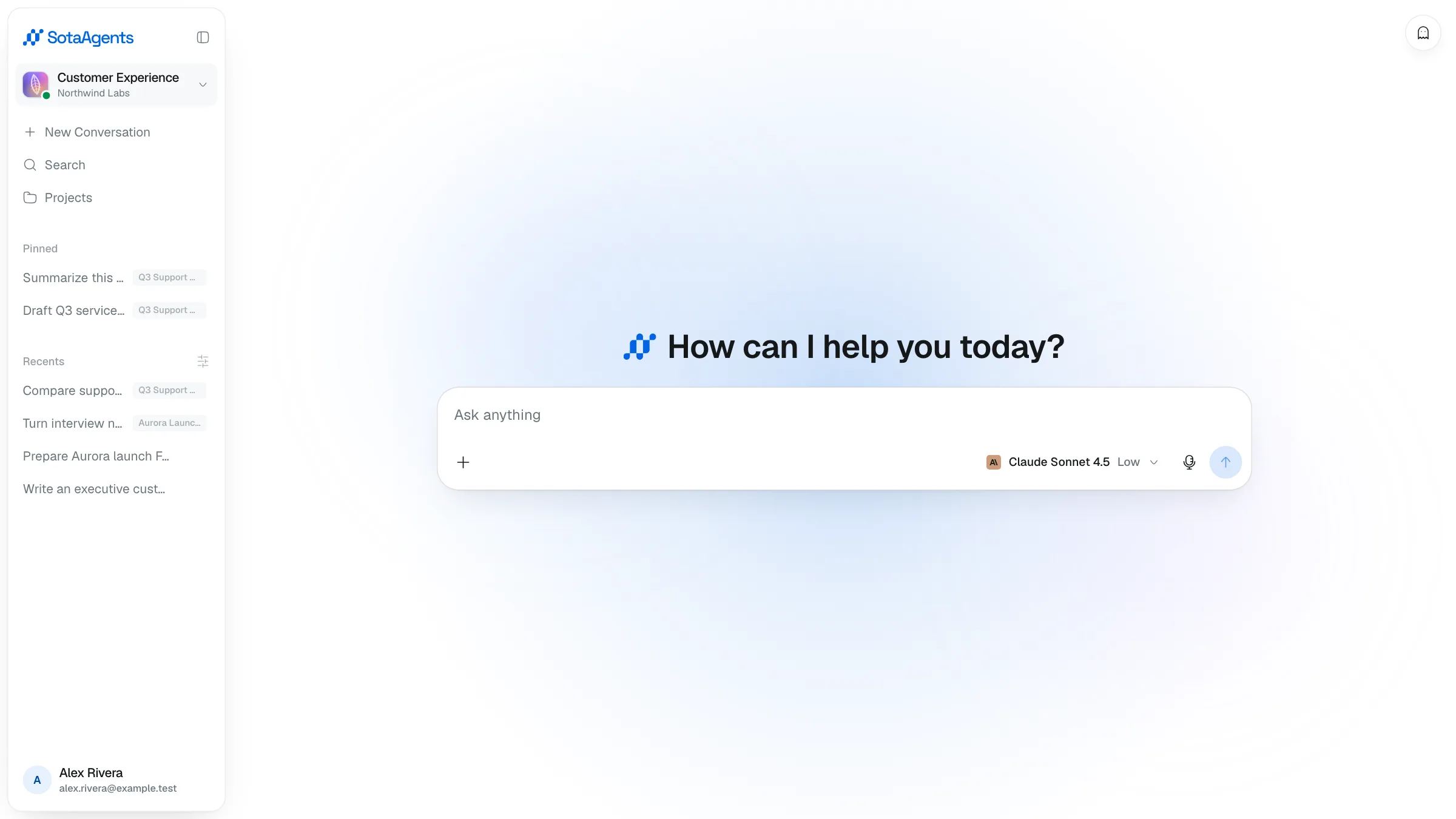
| Area | What's there |
|---|---|
| Sidebar (left) |
|
| Chat UI (center) |
|
| Artifacts panel (right) |
|
Sending a message#
Start a new conversation (optional)
Hit New Conversation in the sidebar to start fresh.
Type and send
Enter sends, Shift+Enter adds a new line.
Watch the answer stream
The assistant's reply appears live. If it needs to search, generate a file, or call a tool, you'll see a tool step appear inline before it continues writing.
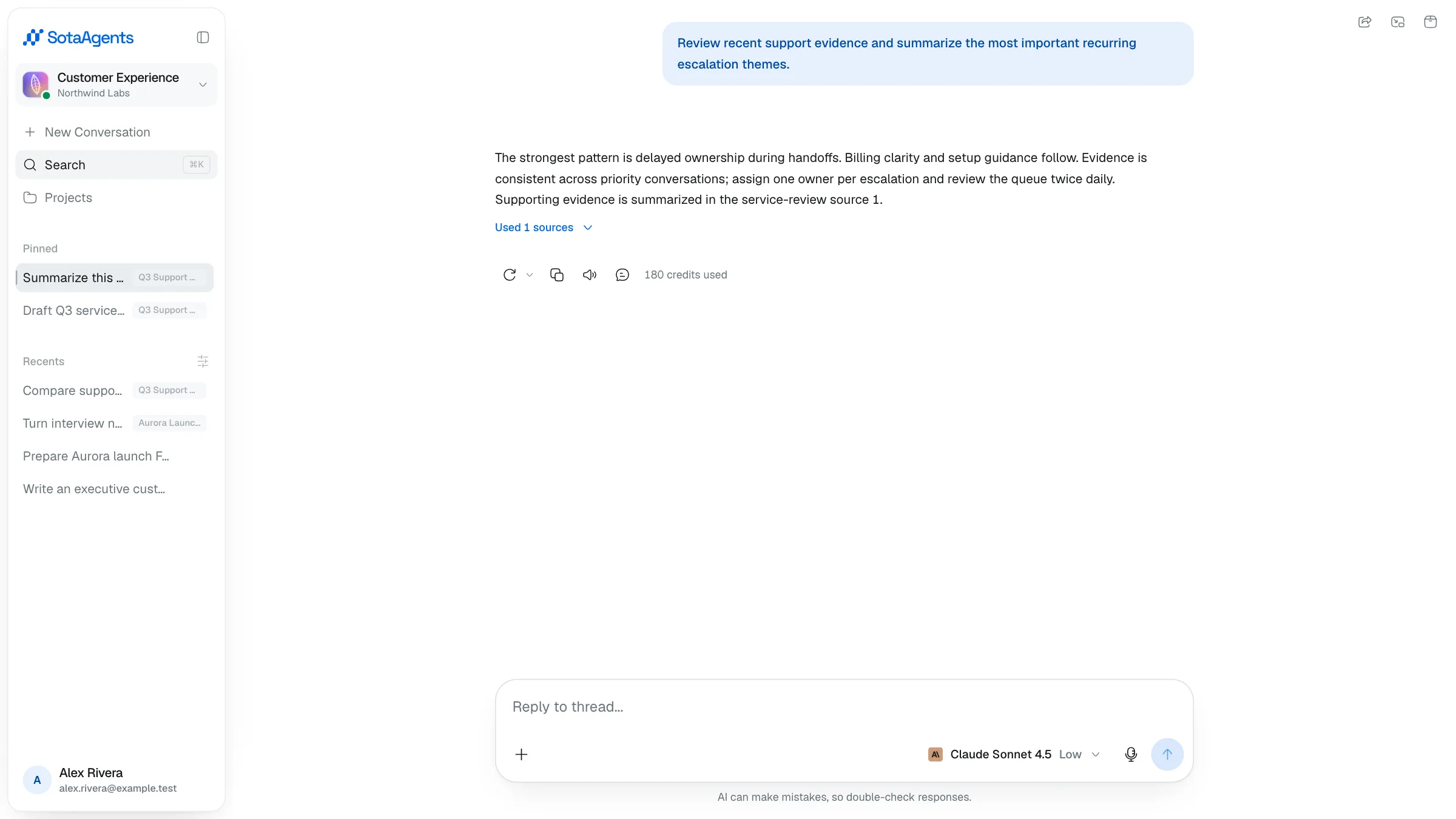
Stop a runaway answer
While the assistant is replying, the send button becomes a Stop button. Click it to halt generation.
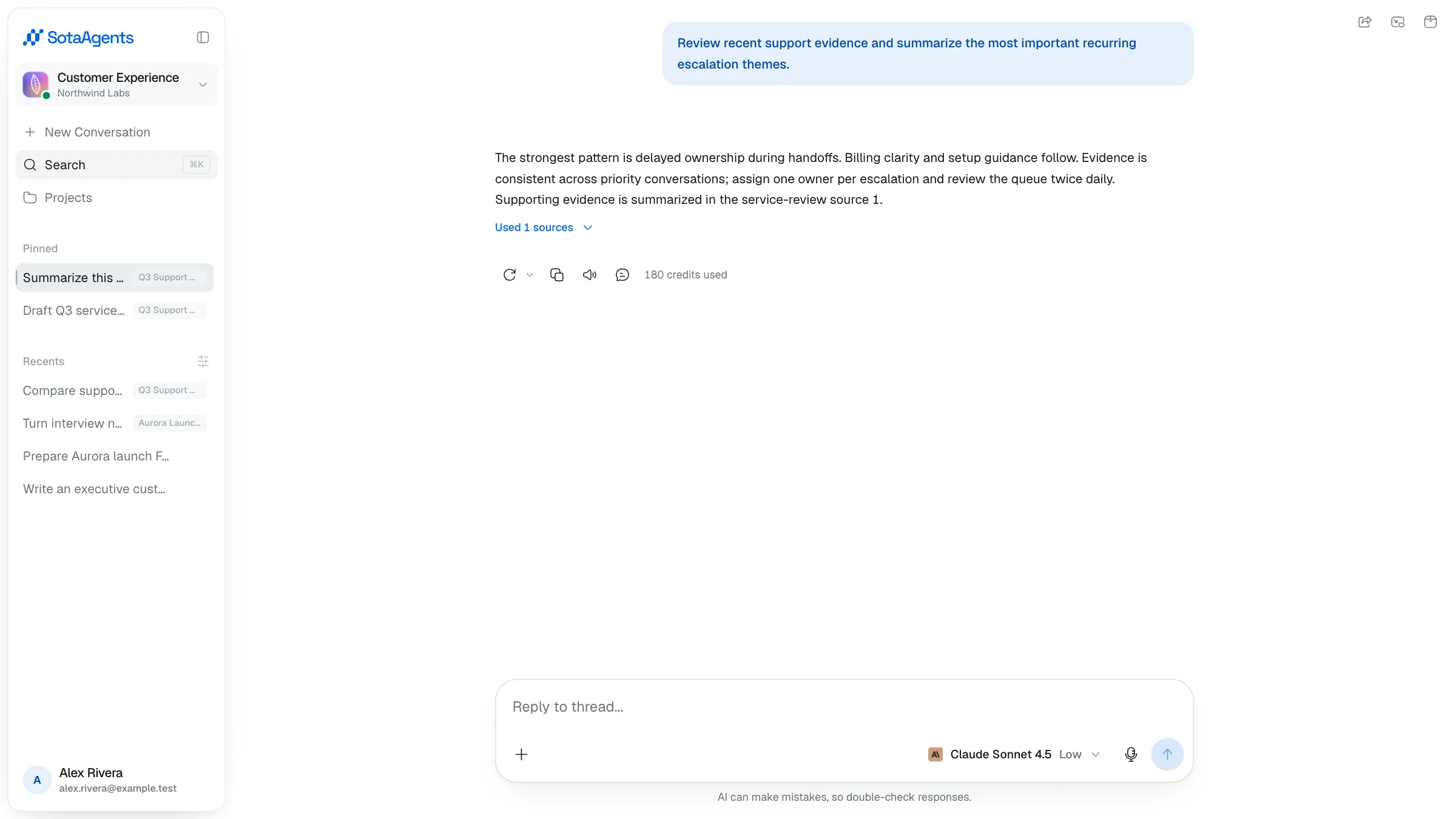
Reply, read aloud, and branch#
Select a passage inside an assistant reply, then click Reply. The selected excerpt is attached above the composer so the next message keeps the exact context.
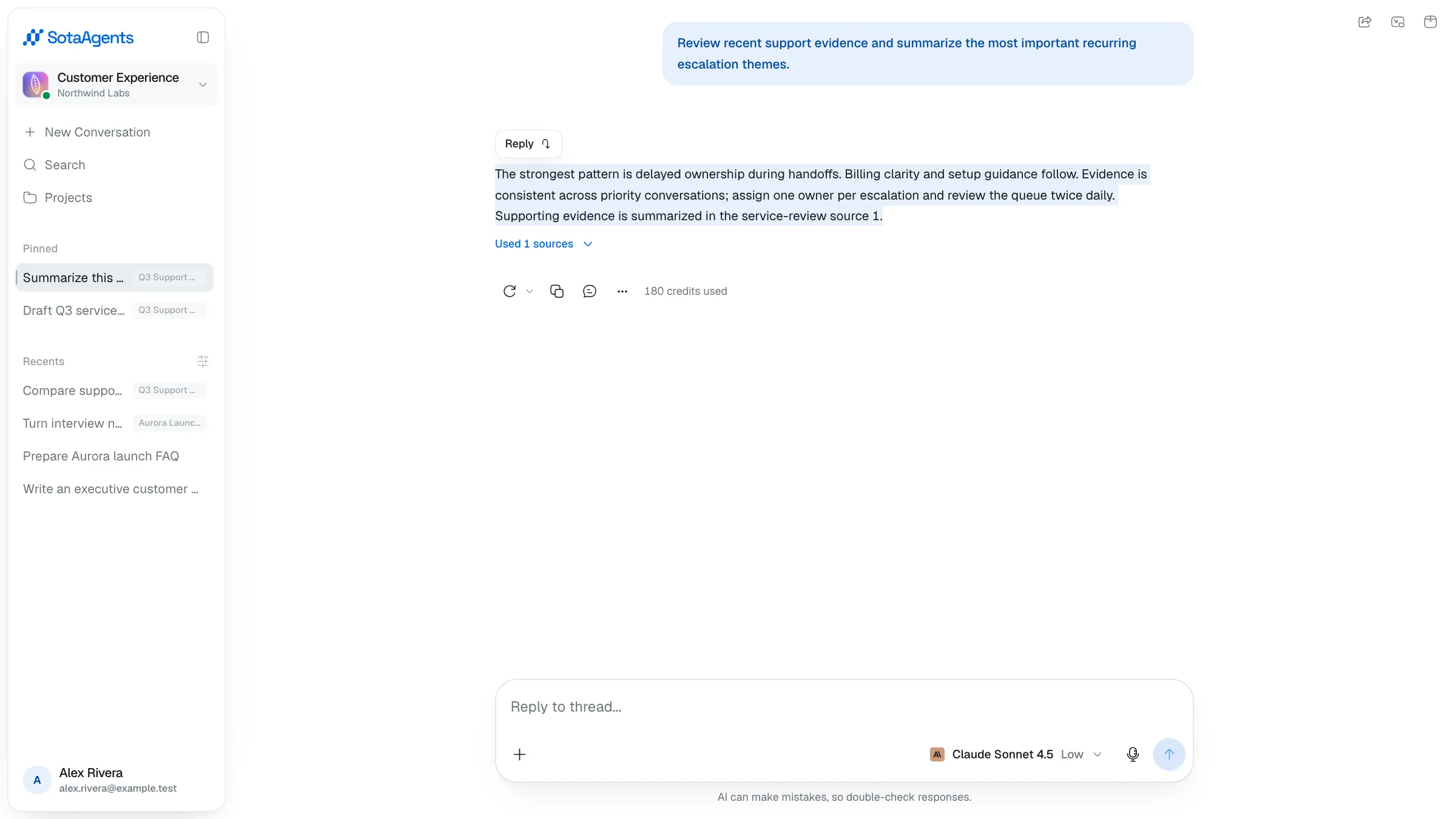
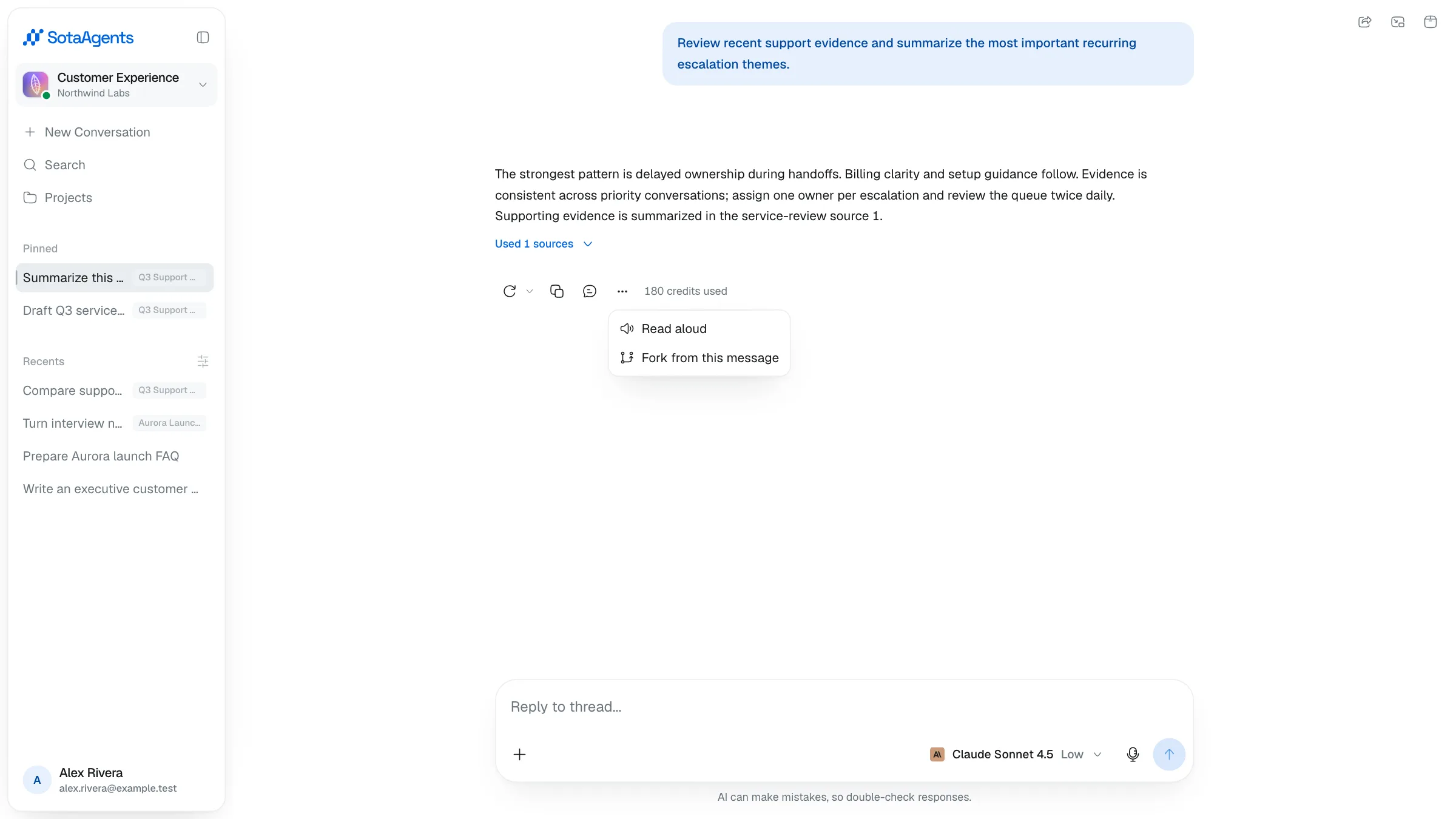
Open an assistant reply's More menu for Read aloud or Fork from this message. A message fork copies the conversation through that reply into a new thread and leaves the original untouched.
Edit and long conversations#
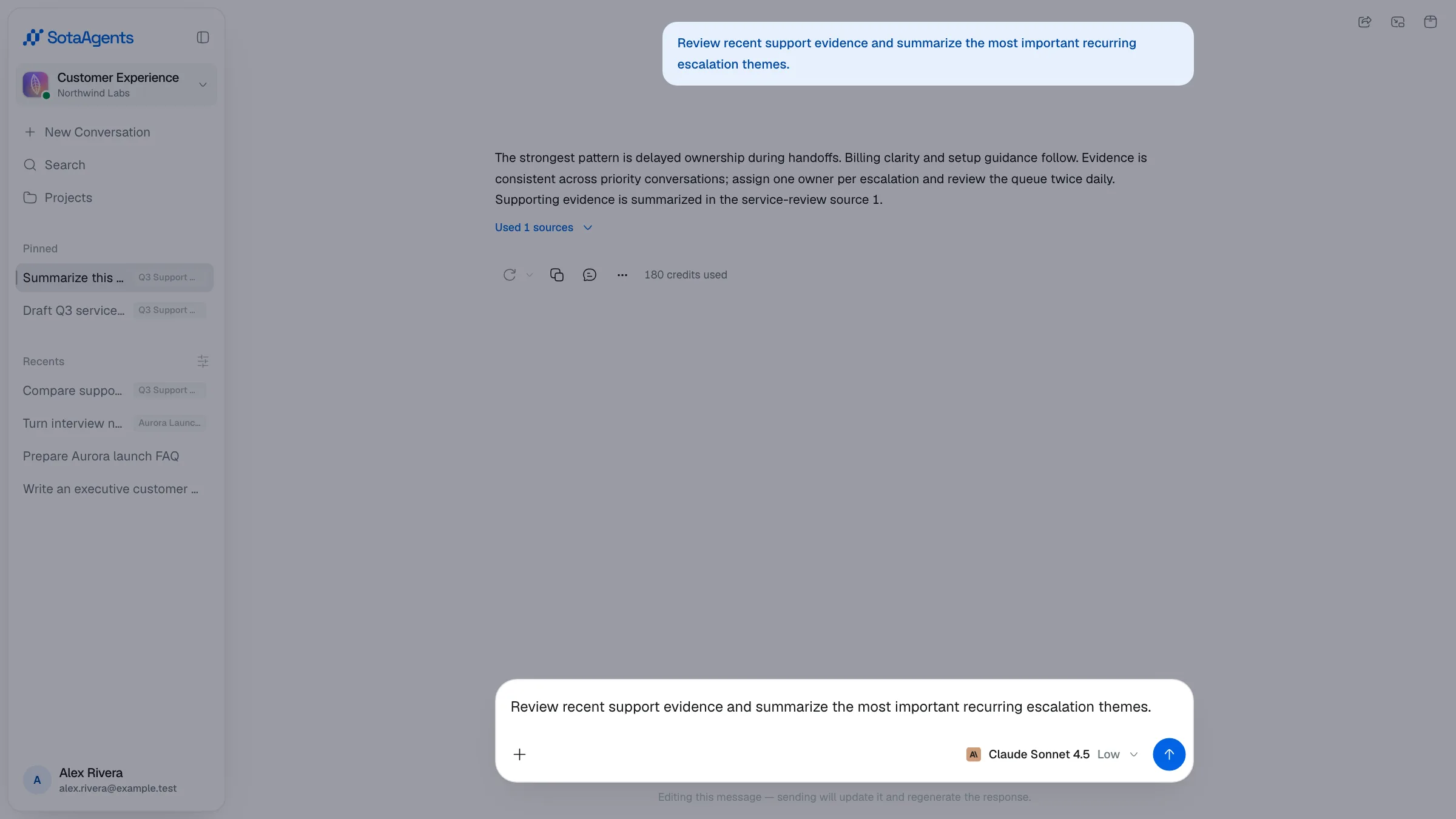
Editing a historical user message opens the composer under a dark overlay and locks scrolling. Press Esc or click outside to leave edit mode; the in-progress edit is preserved if you switch conversations and return.
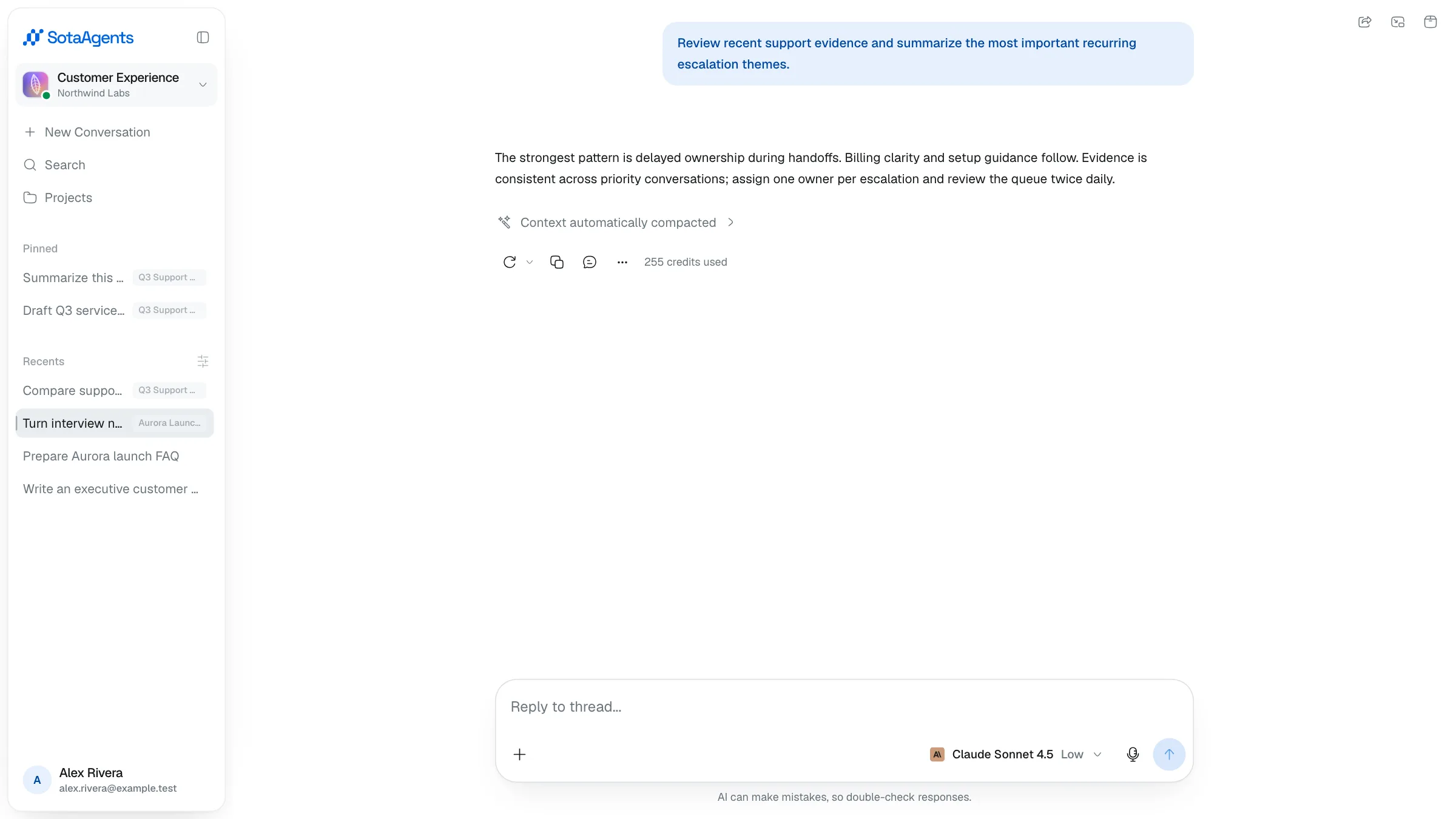
When a long conversation is summarized automatically to free context space, a Context automatically compacted activity appears in the chat stream.
Inactive organizations#
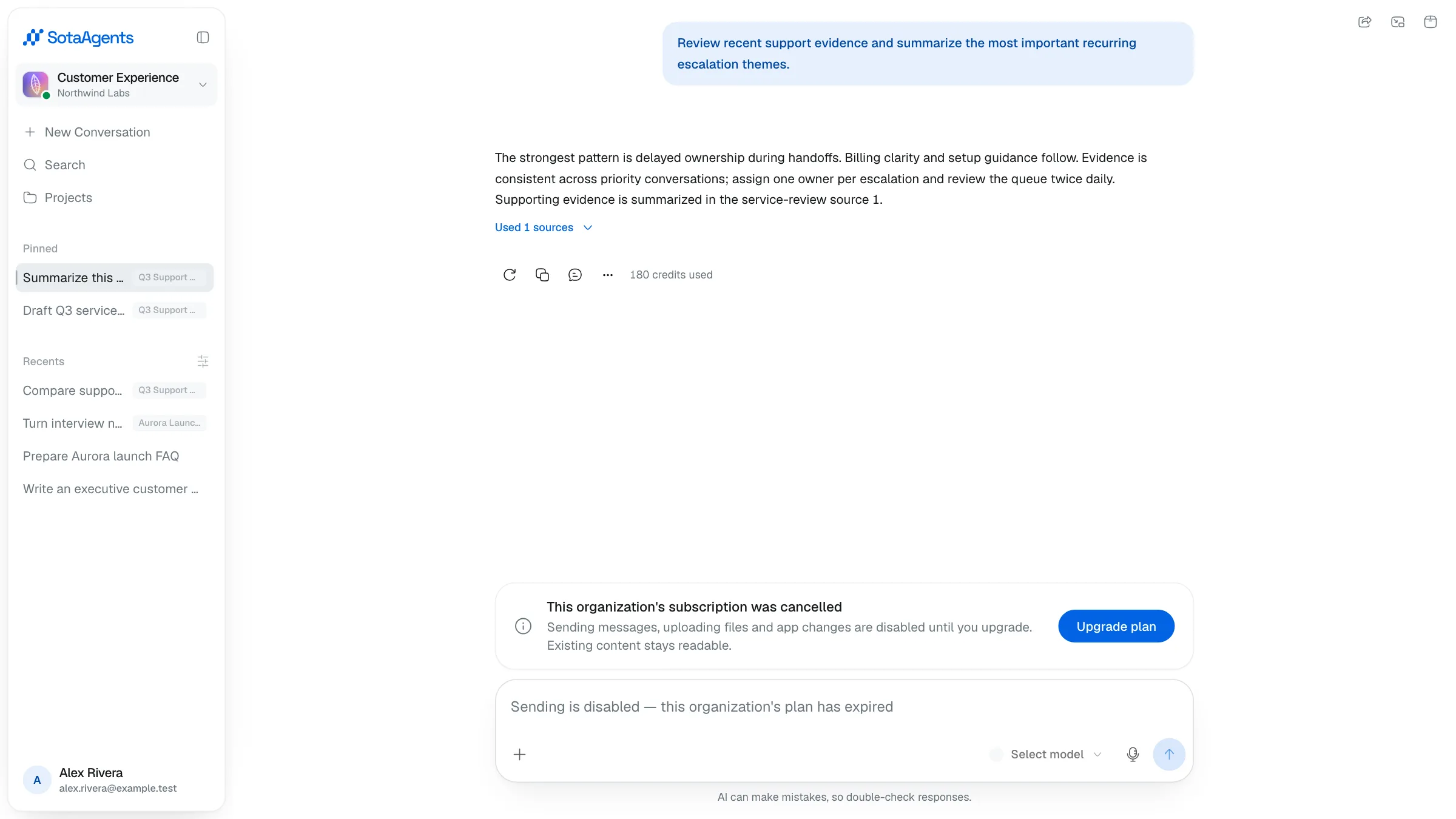
If the organization's subscription is inactive, the notice appears on the composer. Existing content remains readable, but sending messages, uploading files, and changing apps are disabled until the plan is restored.
An error banner appears below the messages with Retry and Dismiss buttons.