
Installing apps
Apps are installable extensions that add specialized capabilities to your org. Admins manage the live inventory from the Apps tab in the Admin Console (org detail → Apps).
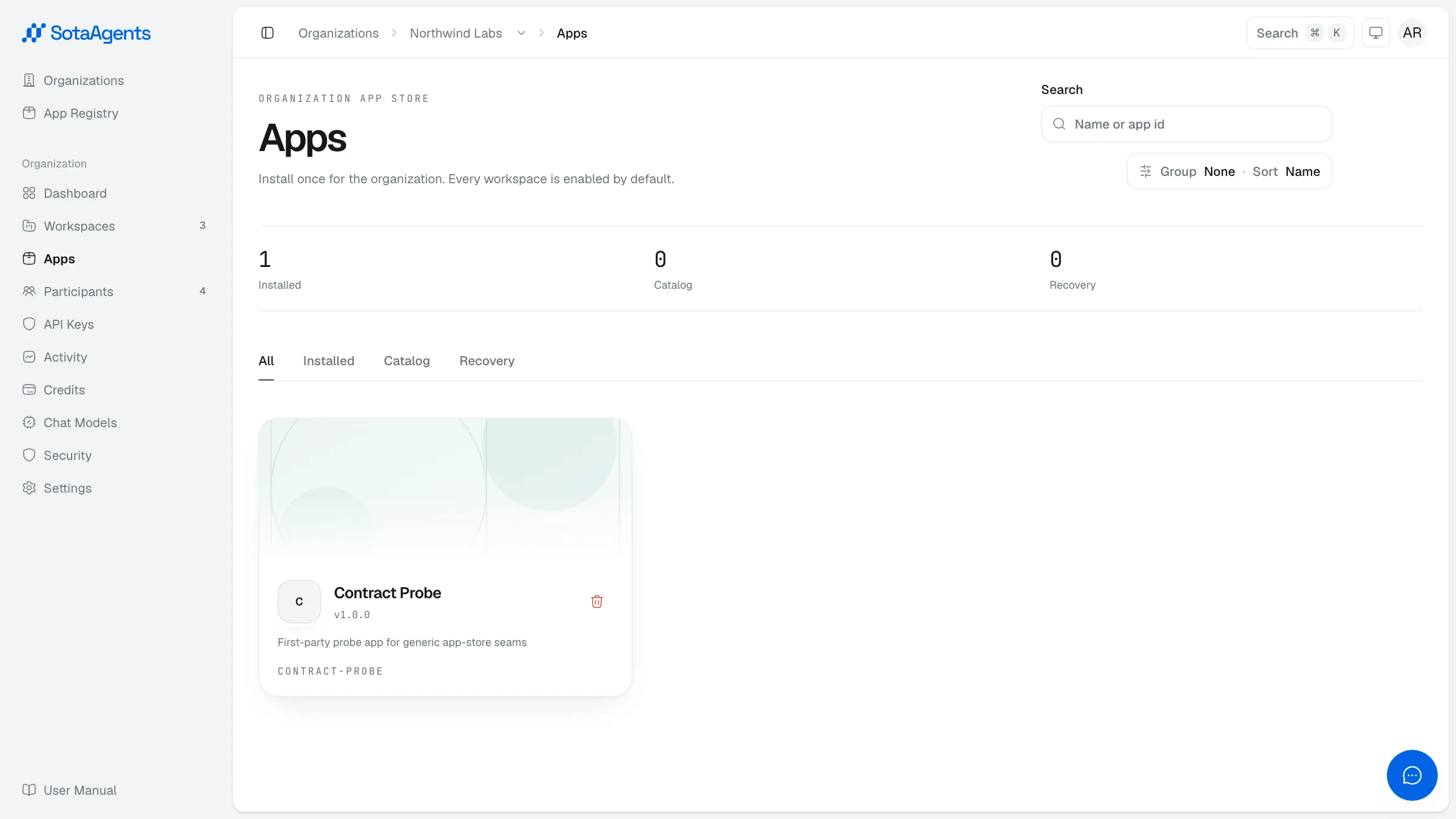
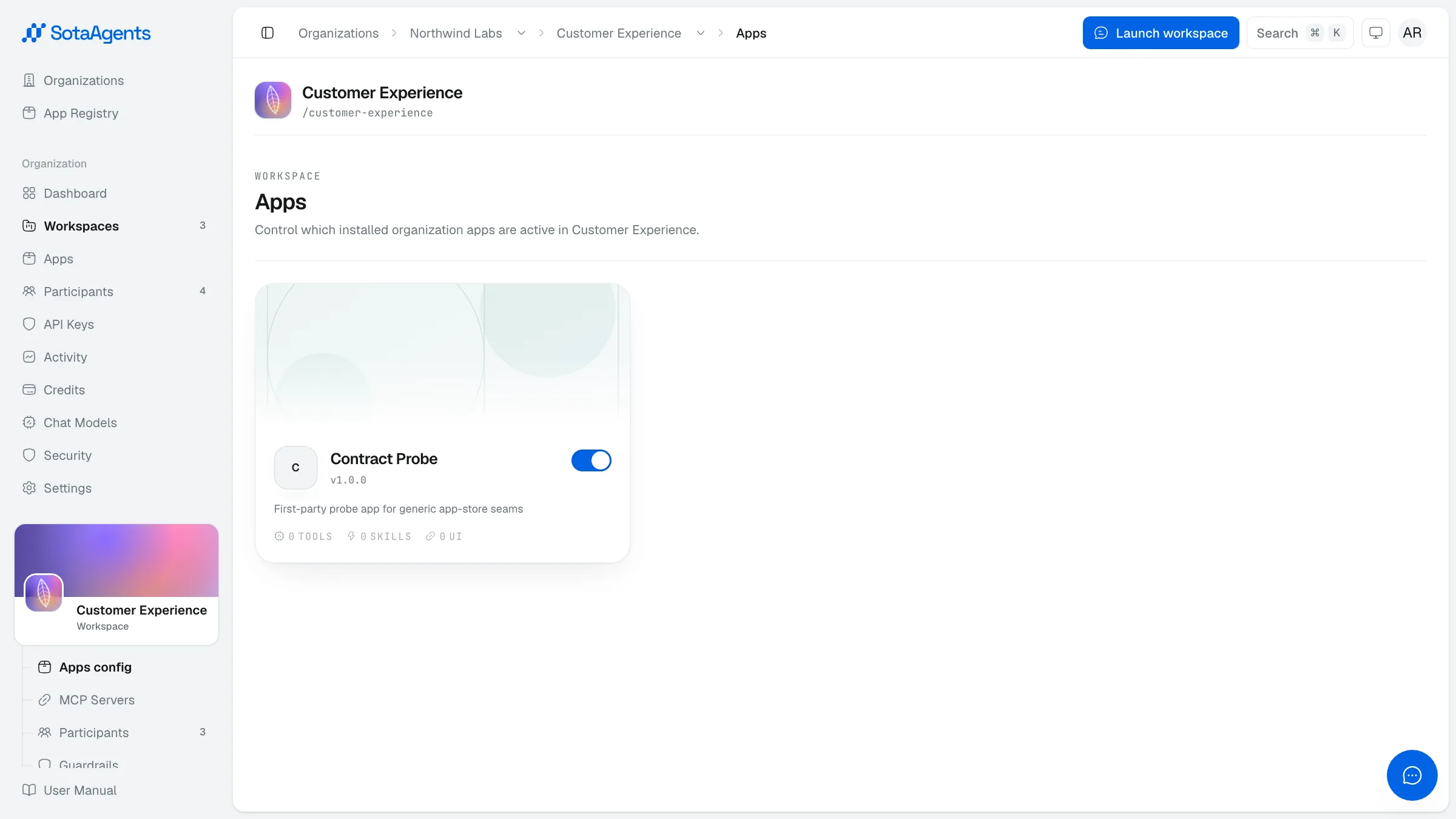
Org level (App Store): installing an exact app environment grants it to the organization. Workspace level (Apps tab): every workspace inherits enabled access by default; an admin can create an explicit disable override for one workspace and re-enable it later.
Example apps#
The catalog is deployment- and organization-dependent. Counts below are examples from one captured artifact, not a fixed platform inventory; use each current app detail page as authority.
| App | What it adds | Surfaces |
|---|---|---|
| Knowledge Base | Shared document store with hybrid semantic + full-text search and source citations. Upload internal documents so the assistant can answer with evidence. Key tools: hybridSearch, searchDocuments, structuredQuery/Sql, file management. | 19 Tools · 1 Skill · 2 UI Slots |
| Office App | Generate and edit Word docs, Excel spreadsheets, PowerPoint/PDF presentations, and dashboards inside a sandbox. Includes a slide deck editor with automatic quality checks. | 11 Tools · 1 Skill · 1 UI Slot |
| Web Search | Real-time public web search and page content extraction. Key tools: webSearch, fetchWebPage (up to ~50 000 chars per URL). | 3 Tools · 1 Skill · 1 UI Slot |
| CAD | CAD/BIM workflows for construction — ingest PDF/DWG/DXF/IFC files, layout-aware OCR, Q&A with page citations, automatic symbol counting, area calculation, and interactive BIM model viewer. | 5 Tools · 2 Skills · 7 UI Slots |
| Remagine | AI short-video creation: the assistant writes Remotion (React/TSX) code in a per-video workspace, provides live preview via esbuild, and renders final MP4 via Remotion Lambda. | 11 Tools · 1 Skill · 1 UI Slot |
The App Store interface#
The Apps tab has four sub-views:
- All — every app available to your org.
- Installed — apps currently active.
- Catalog — the full marketplace of apps you can add.
- Recovery — soft-uninstalled apps. Deleted apps stay here for 30 days before permanent removal, so you can restore them if needed.
Installing an app#
Open the Catalog tab
Go to Console → Your org → Apps → Catalog.
Install
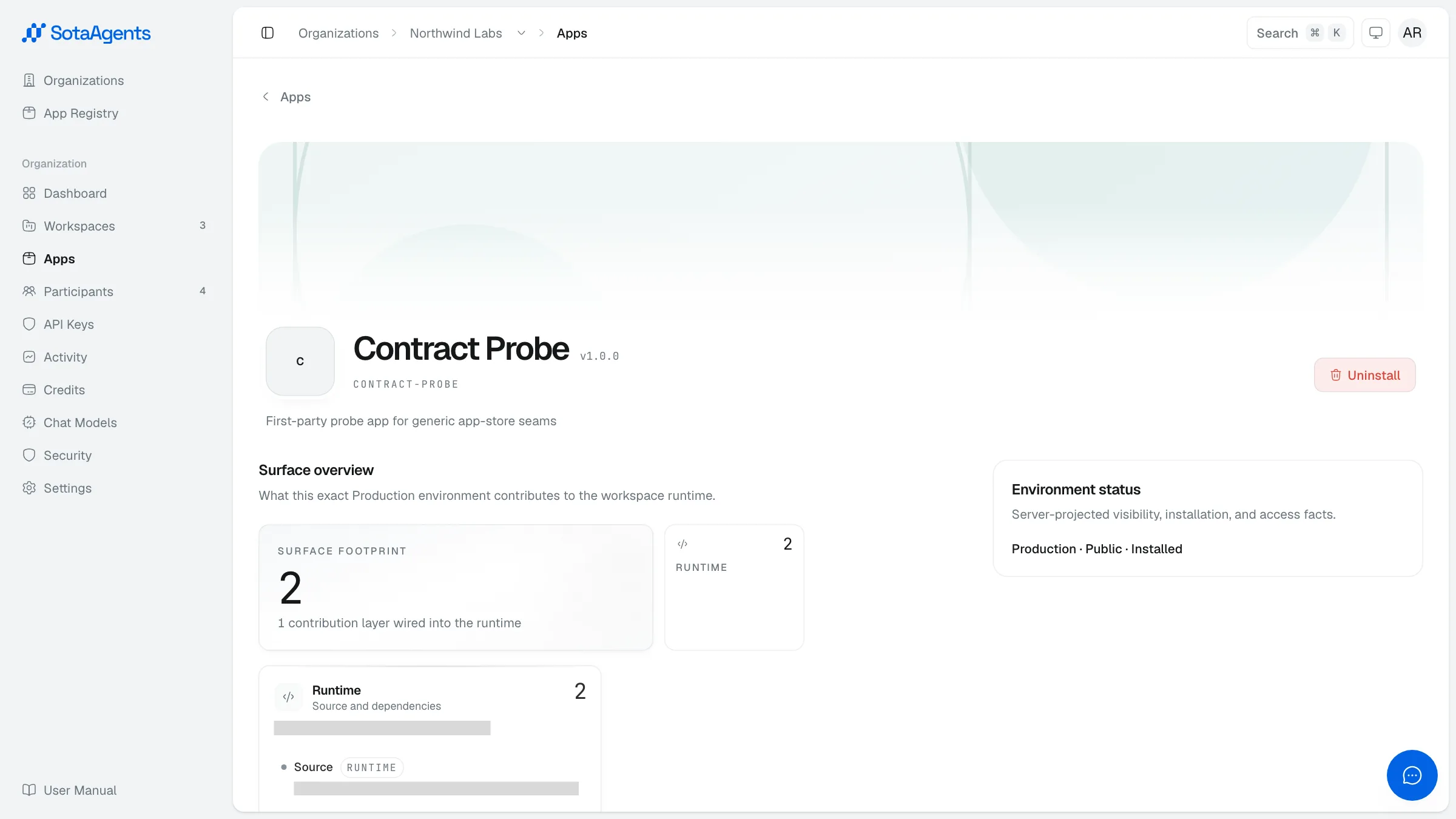
Open the exact Development, Staging, or Production environment card, review its version and contributions, and click Install. The environment is installed for the organization and inherited as enabled by every workspace.
Review workspace access
Go to the workspace detail screen → Apps tab. The newly installed app is enabled by default. Disable it only for workspaces that must not expose it; re-enable it there to remove that restriction.
Uninstall
Click Uninstall from the Installed tab. The app moves to Recovery for 30 days. During that window you can restore it. After 30 days it is permanently removed.
Each app consumes credit when used. Check the Credit Logs tab to see per-app consumption, and set workspace-level credit alerts if you need to cap spending.