
API keys
API keys authenticate approved machine-to-machine integrations. The first-party Configure Embed public deployment does not use an organization API key in the browser; it exchanges its publish/embed identity for a constrained guest session. If you only use chat or the built-in public widget, do not create a key for that purpose.
Open API Keys
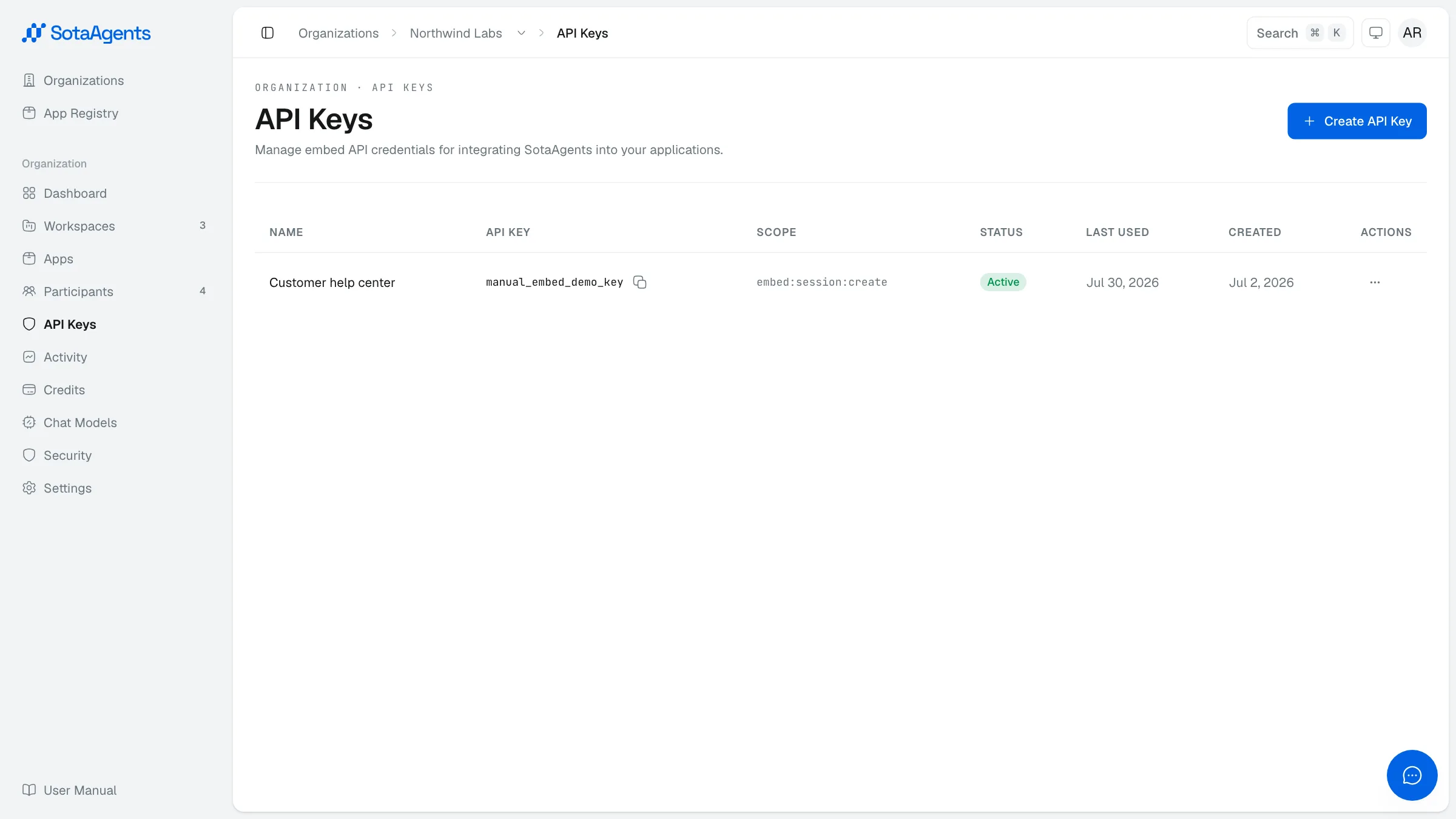
Go to Console → Your org → API Keys in the left sidebar.
Create a key
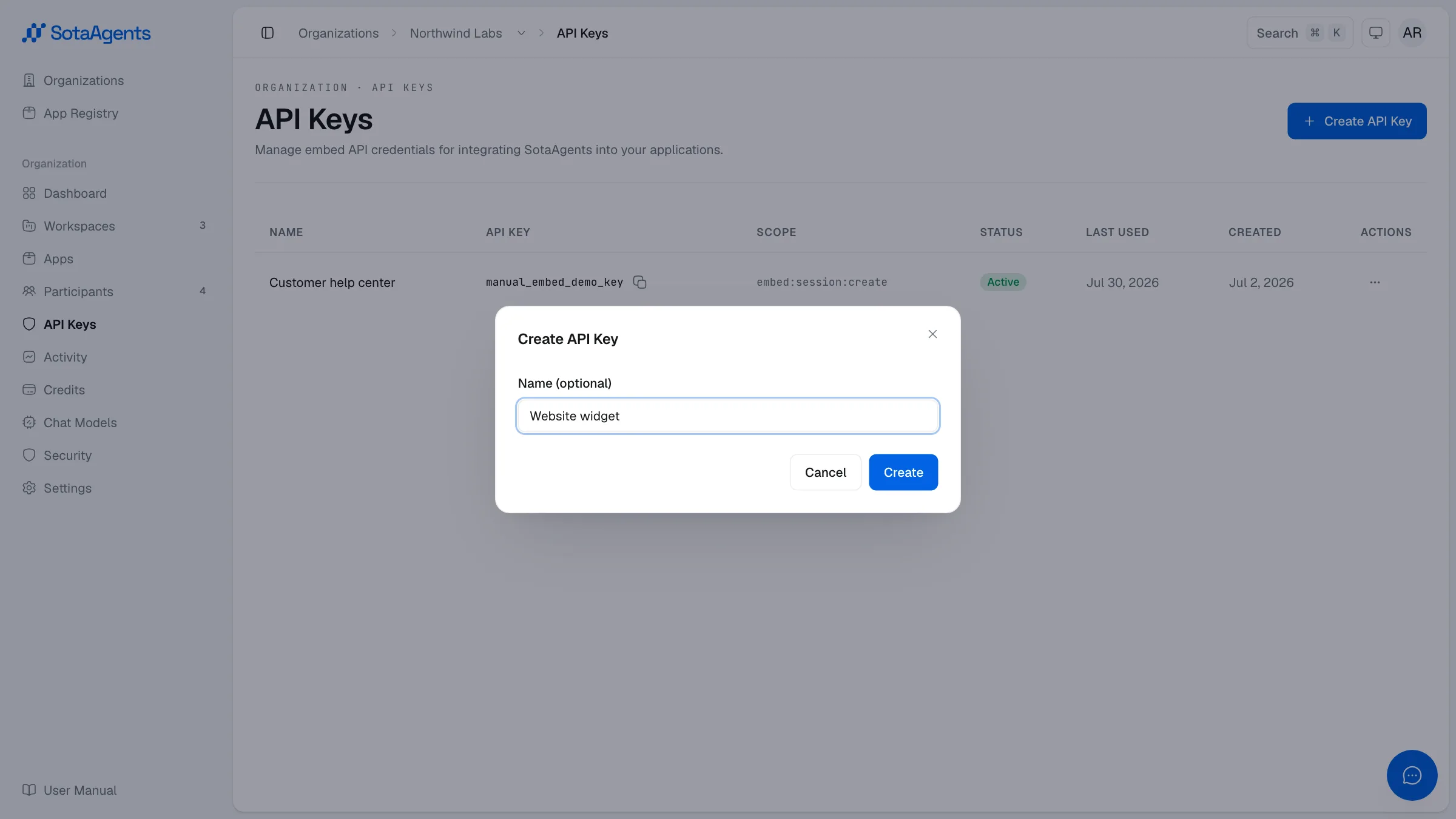
Click Create API Key (top-right). A dialog opens — enter an optional Name (e.g. "Production environment") to identify it later, then click Create.
Save the key and secret immediately
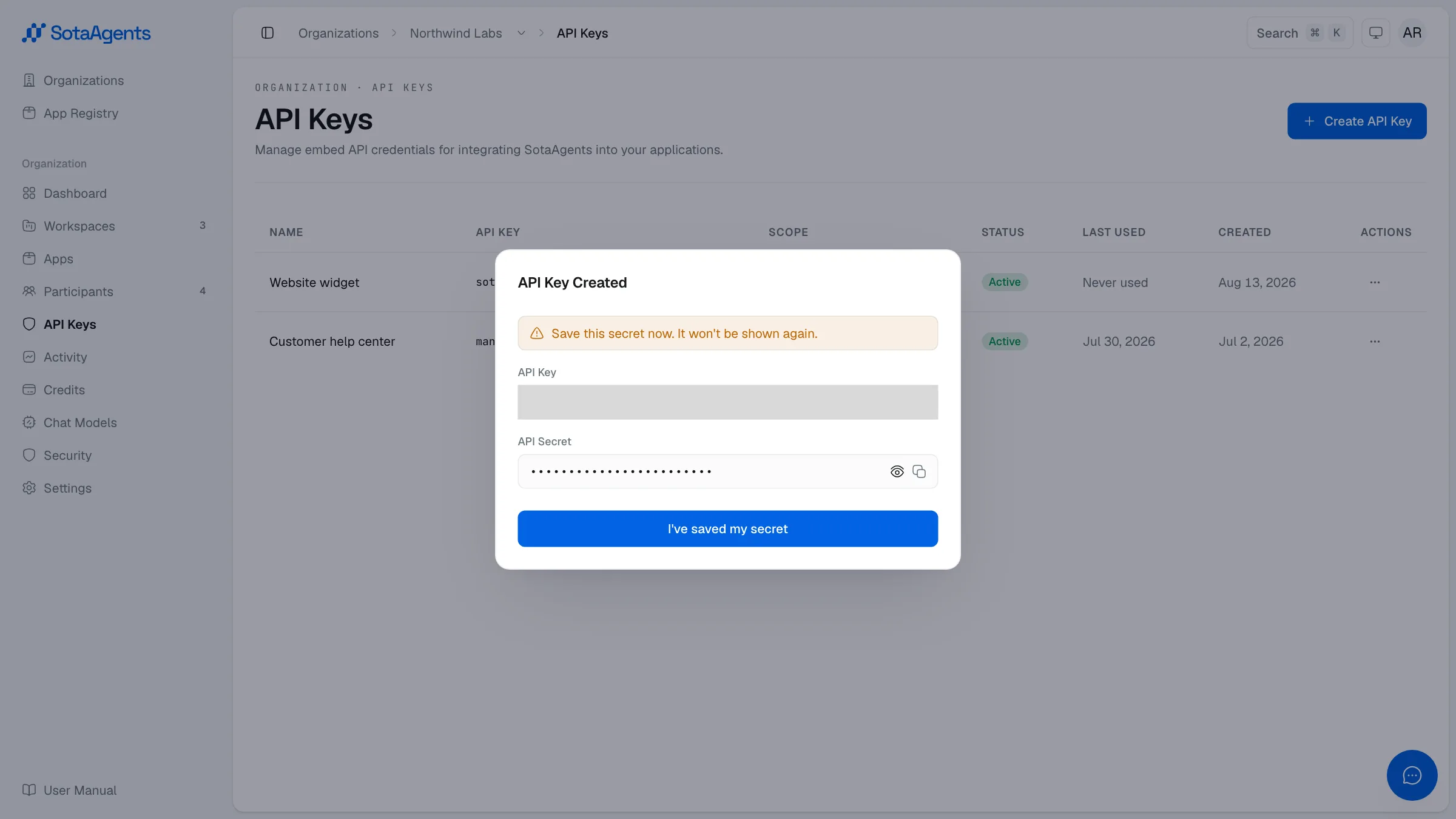
The "API Key created" screen is shown only once. It displays both the API Key (format: sota_ek_…) and the API Secret. Copy both now and store them securely — they cannot be retrieved after you close this screen.
Confirm and close
After saving, click I have saved the Secret to close the dialog.
Use the key in approved API calls
Use the key only with the machine API and scopes documented for your integration. Its main use is signing the ticket handshake that puts SotaAgents inside your own systems — see Embedding SotaAgents in your own systems. For a public guest widget, use Workspace → Configure Embed instead.
Disable a key
To stop using a key without deleting it, click the Actions button on the key's row and choose Disable. Confirm in the dialog. The key stops working immediately and remains visible in the list in a disabled state.
Never commit API keys to source control or share them in chat. Treat them like passwords. If a key is exposed, disable it immediately and create a new one.