
Signing in
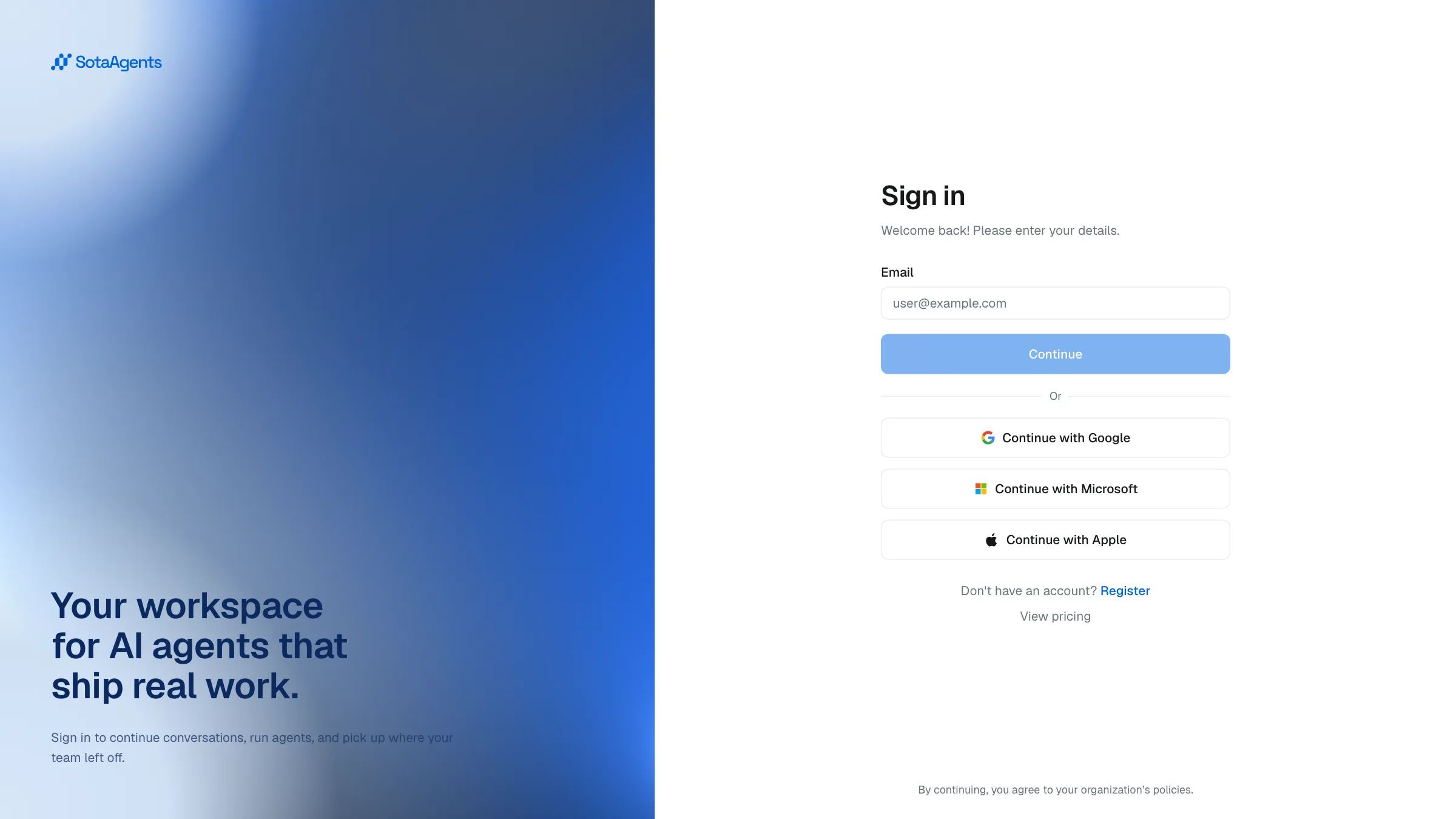
SotaAgents supports four authentication methods: email + password, Google SSO, Microsoft SSO, and Apple SSO.
Open the sign-in page
Visit https://app.sotaagents.ai/.
Choose a method
- Email & password — enter your registered email and password, then click Sign in.
- Google SSO — click Continue with Google and authenticate with a Google account.
- Microsoft SSO — click Continue with Microsoft and authenticate with a Microsoft account.
- Apple SSO — click Continue with Apple and authenticate with an Apple account.
Create an account
If you do not have an account, click Register, submit your name, email, and password, then verify the email address. Registration creates your user account; an organization or workspace invitation is still required to join a tenant you do not already belong to.
Forgot your password?
Click Forgot password? on the sign-in page. Enter your email address and follow the reset link. No admin action is required.
Stay signed in
SotaAgents keeps your session alive automatically. Use Sign out in the account menu at the bottom of the sidebar when you are done on a shared device.
Supported native builds open OAuth in the system browser and return through an app callback using a one-time PKCE exchange. If the callback fails, expires, or is consumed, restart sign-in from the app; do not reuse the old link. Availability can differ by deployment.
Verify your email, use the same sign-in method you registered with, and follow any organization SSO policy. If you can sign in but cannot see a tenant, ask its admin for an organization or workspace invitation.
After authentication, the workspace screen appears. Use the workspace selector at the top of the sidebar to switch between workspaces.