
Projects
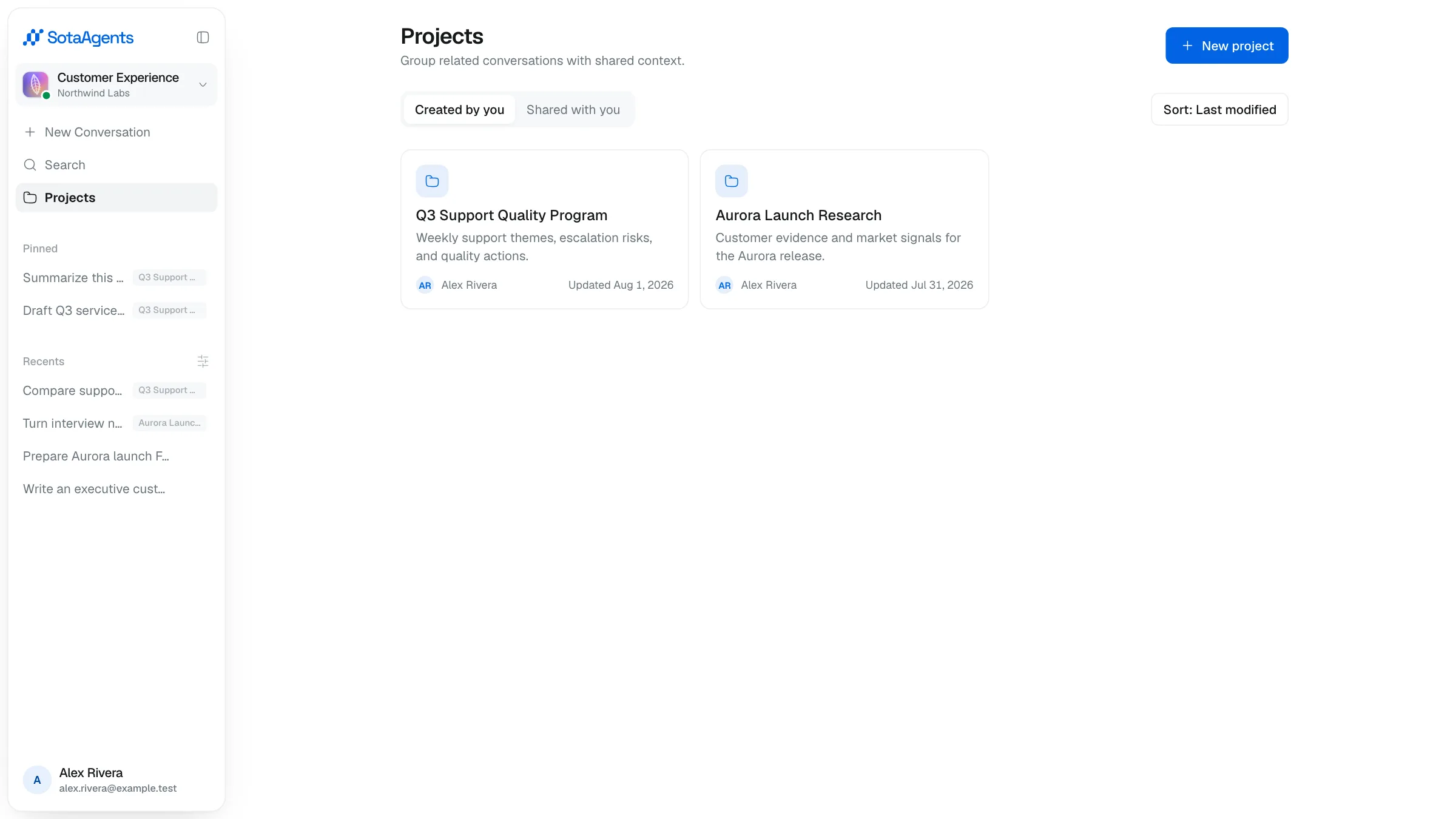
Projects let you group related conversations under a shared name, with optional instructions and shared context files. Click Projects in the sidebar to open the projects list.
Creating a project#
Open the list
Click Projects in the sidebar. Use the tabs to switch between Created by you and Shared with you. Sort by last modified, name, or created date.
Create
Click New project, enter a name (required) and an optional description, then confirm. The project appears in the list immediately.
Adding and moving conversations#
Add to a project
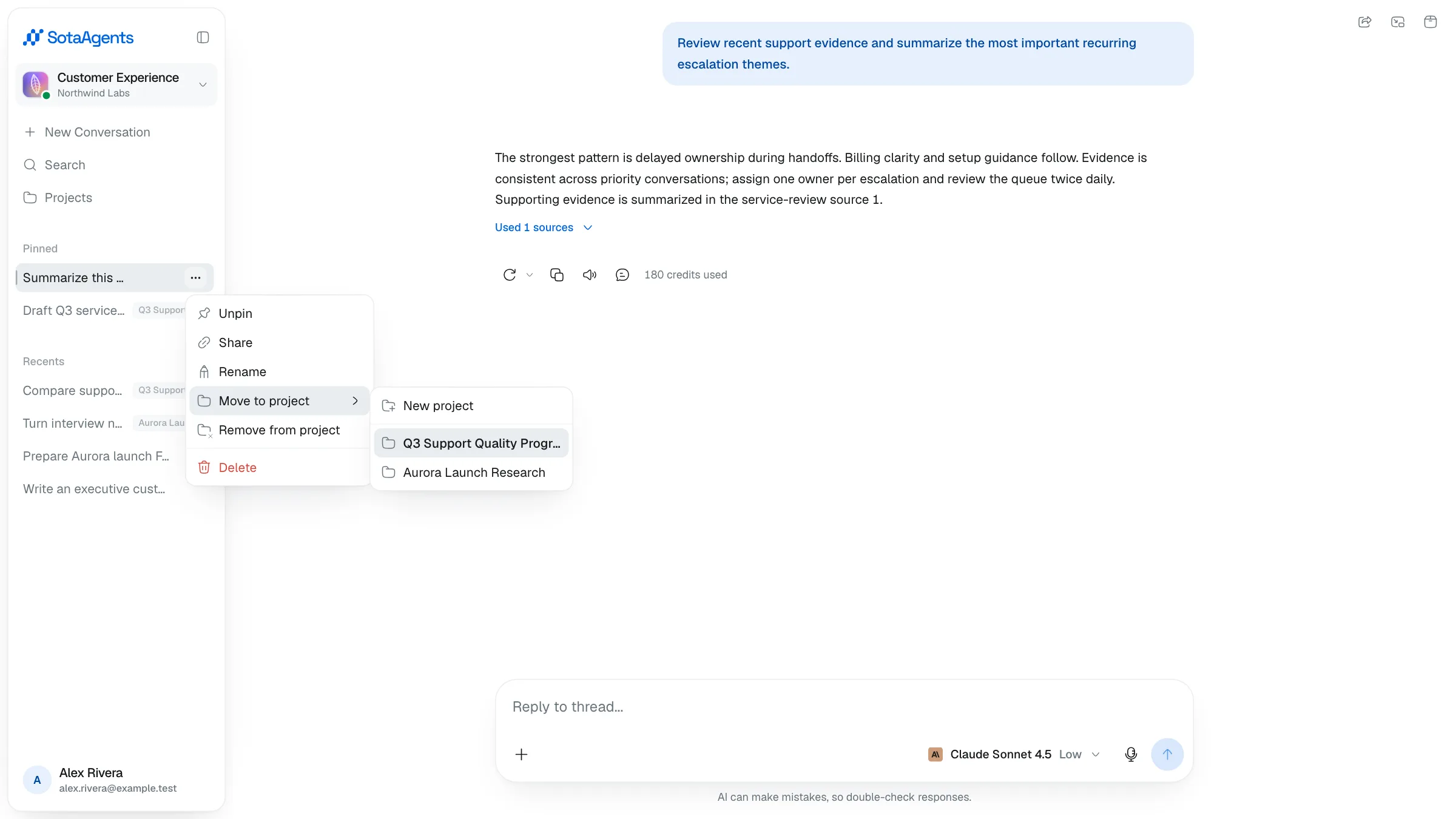
Click the … menu on any conversation — in the sidebar or inside a project — and choose Add to project. A submenu lists your projects; you can also create a new project from there.
Move or remove
From the same … menu, choose Move to project to send it to a different project (a confirmation is shown first), or Remove from project to unlink it without deleting it.
Inside a project#
Opening a project shows a composer to start a new chat within the project, and the list of conversations it contains. The right sidebar lets you:
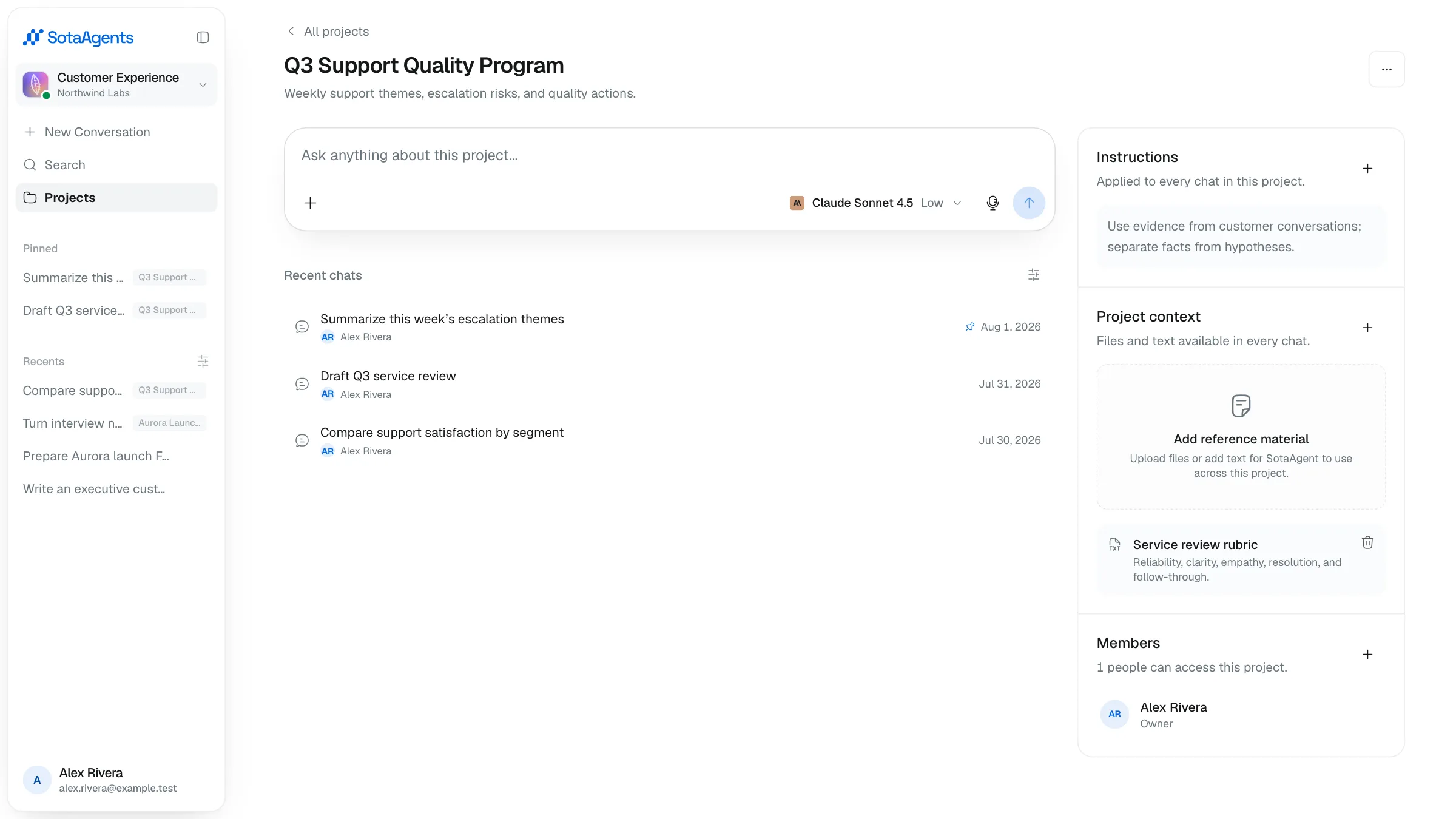
- Instructions — set a shared instruction that applies to every chat started inside the project.
- Project context — attach files or text snippets (up to 50 items) available in every project chat.
- Members — invite workspace members to the project and manage their access.
Renaming and deleting#
Use the … menu on a project card or on the project detail page to Edit (rename or update the description) or Delete the project. Deleting removes the project and its conversations immediately. This cannot be undone.