
Sharing
On this page
You can share a conversation snapshot with teammates or the public via a link. A shared link captures the conversation at the moment you create it — new messages aren't included until you update the link.
Share settings#
| Audience | Who can view |
|---|---|
| Workspace only | Members of your current workspace. |
| Organization | Anyone signed in to your organization. |
| Public link | Anyone with the link, no sign-in required. |
How to share#
Open the share dialog
Click the share icon in the conversation header (or three-dot menu → Share). The dialog shows the current audience and link.
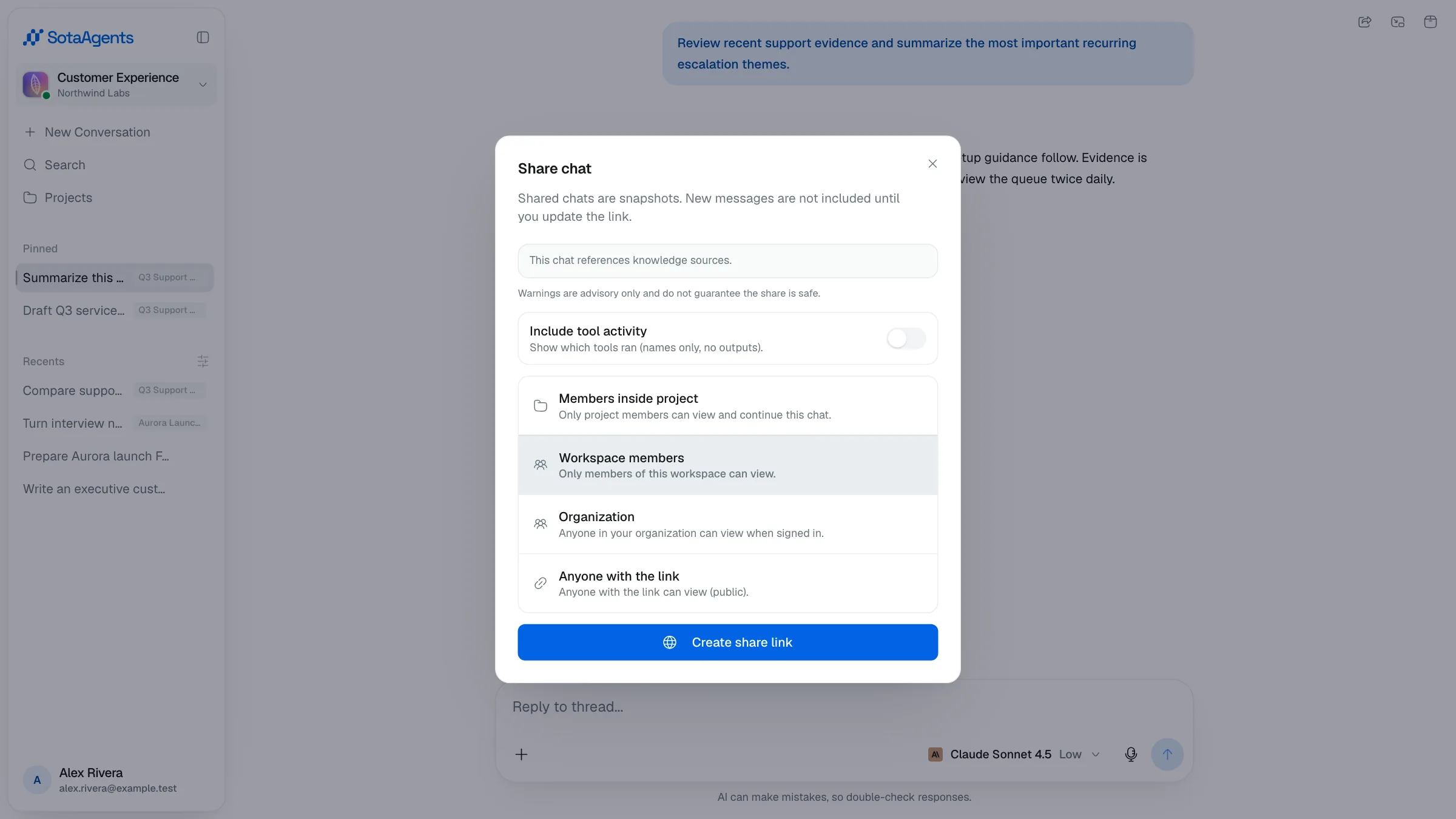
Choose an audience
Pick Workspace only, Organization, or Public link. Public links are visible to anyone — don't share sensitive conversations publicly.
Optional: include tool activity
Toggle Show tool activity to include tool step names in the shared view (tool outputs are never shown). The dialog warns if the conversation contains attachments, artifacts, knowledge sources, or possible secrets.
Copy and share the link
Copy the link and share it however you like. Recipients can read the snapshot at /share/c/:token without joining your workspace.
Update or revoke
Update link refreshes the snapshot to include new messages. Revoke link immediately stops access — anyone visiting the old URL will see an expired page.
Recipients of a shared link can click Create a copy to fork the snapshot into their own workspace and continue the conversation from there.