
Guardrails
On this page
Guardrails keep conversations safe: they block prompt-injection and jailbreak attempts, mask personal data, and screen tool/document output. Configure them from the workspace's direct Guardrails navigation item. Available to authorized organization owners/admins.
What guardrails check#
The Hub exposes two workspace-controlled planes. Core also applies a platform-managed reasoning safeguard:
What is checked| Mode setting in the Hub | Meaning | |
|---|---|---|
| User input enforcement | Your messages | The text people type, checked before the assistant answers. Personal data (emails, phone numbers) can also be masked here. |
| Tool output enforcement | Tool & document content | Text the assistant brings in from tools, uploaded files, the web, or the knowledge base — checked before it is used. |
| Model reasoning | Reasoning on its way to the browser or storage | Platform-managed detection masks secrets and personal data before reasoning is streamed or saved. This plane is not a workspace mode selector. |
What each mode does#
You choose a mode separately for User input enforcement and Tool output enforcement. Here is what each mode does in both cases:
| Mode | User input enforcement | Tool output enforcement |
|---|---|---|
| Off | Workspace-selected input checks do not run. | Workspace-selected tool-output checks do not run. |
| Observe (log only) | A match is recorded in the log; nothing is changed or blocked. | A match is recorded in the log; nothing is changed or blocked. |
| Redact (mask) | Personal data (e.g. an email) is hidden before the assistant sees it. | The matched part is hidden when possible, then the content continues. |
| Enforce (block) | A risky message (e.g. a jailbreak attempt) is blocked; personal data is still masked. | Unsafe content is normally withheld and a safety notice is shown. Knowledge Base app tool results are capped at soft enforcement: matches can be logged or redacted but the retrieved document is not blocked. |
The workspace master switch and Off disable workspace-selected checks only. Platform-mandatory guards can still run, and the Hub marks them as Enforced by the platform.
Turn guardrails on for a workspace#
Open the Guardrail Hub
Open the workspace in Console and choose Guardrails from its sidebar. If it is absent, your current role cannot view it.
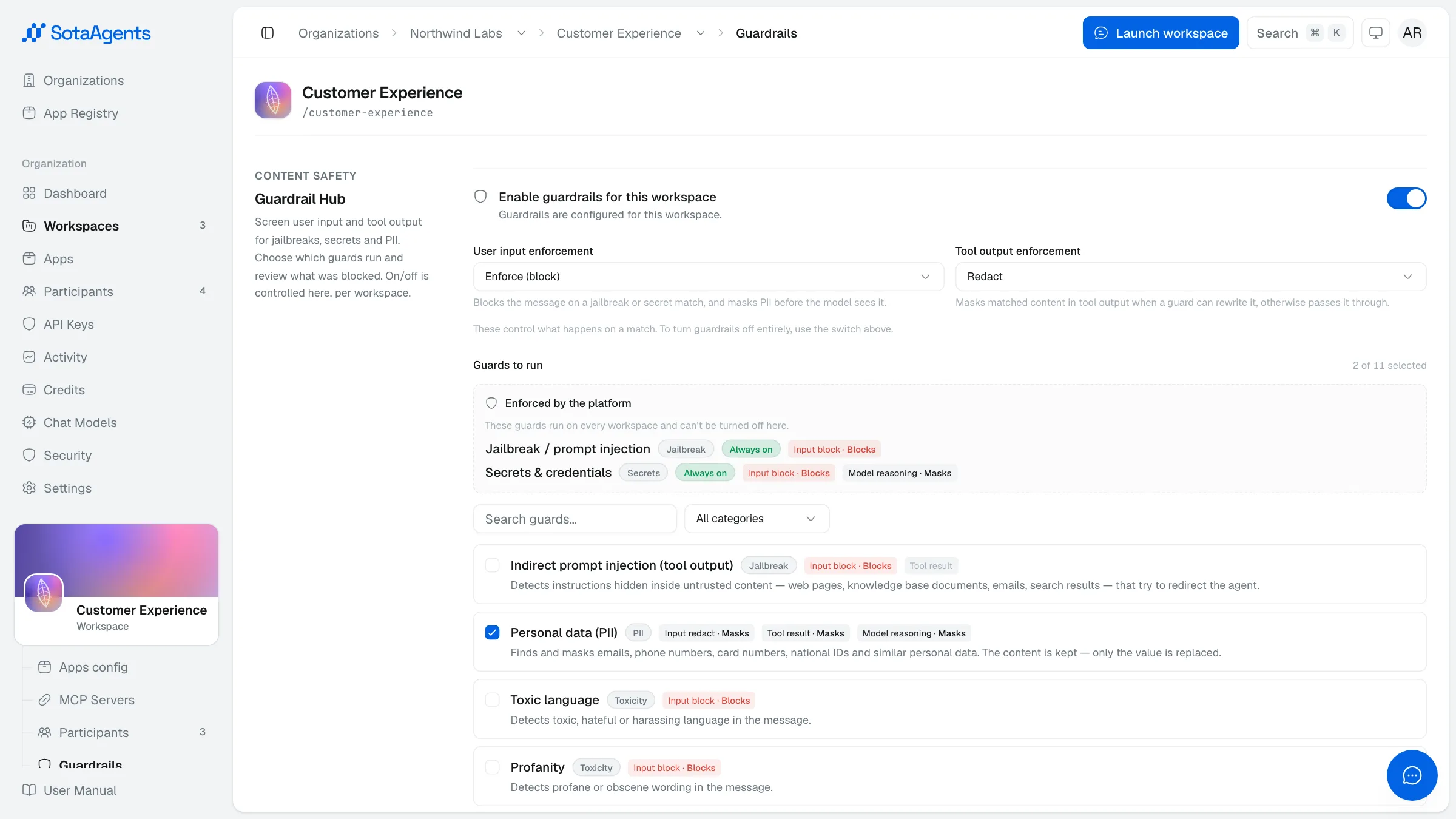
Turn on the master switch
Toggle Enable guardrails for this workspace. This controls workspace-selected guards; platform-mandatory protections remain active.
Choose how strict to be
Set how guardrails act on your messages and on tool output (Observe, Redact, or Enforce). A short note under each option explains what it does.
Pick which guards run
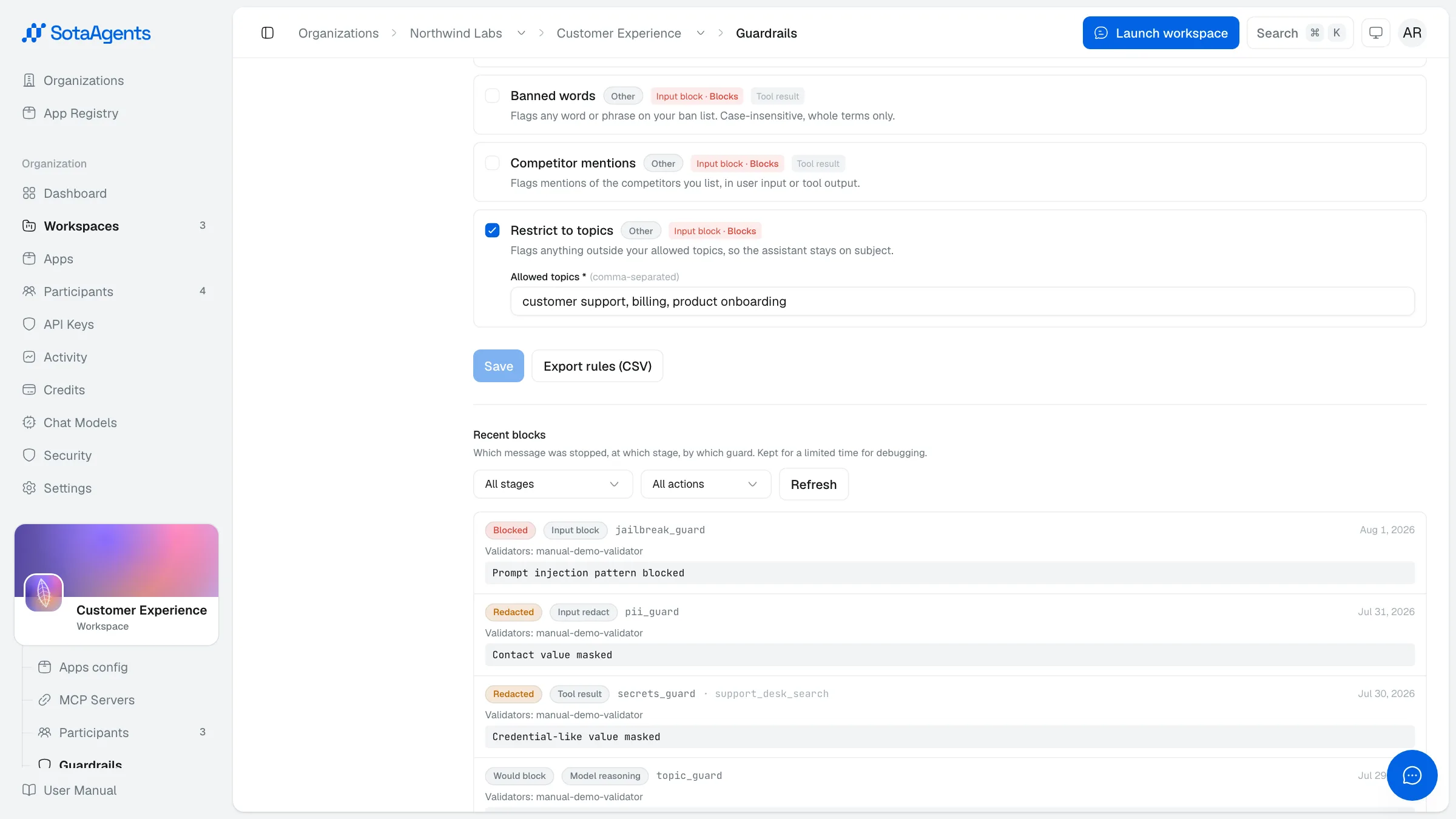
Tick the guards you want for this workspace; search or filter to find them. Leave the list untouched to keep the recommended defaults. A few guards need some values from you (a list of banned words, competitor names, or allowed topics) — fill those in, otherwise you can't save.
Save
Click Save. Changes take effect immediately for new messages. Use Export rules (CSV) to download the current configuration.
Available guards#
Guards marked Recommended are on by default. For the last three, you provide the list they check against.
| Guard | Protects against | You provide |
|---|---|---|
| Jailbreak / Prompt Injection | Attempts to trick or hijack the assistant, including hidden instructions inside documents | Nothing (Recommended) |
| Secrets & Credentials | API keys, passwords and tokens in a message | Nothing (Recommended) |
| Personal Data (PII) | Emails, phone numbers and other personal data (masked) | Nothing (Recommended) |
| Toxic Language | Toxic, hateful or harassing language | Nothing |
| Profanity | Profane or obscene words | Nothing |
| NSFW Text | Sexually explicit / not-safe-for-work text | Nothing |
| Toxic Language (Multilingual) | Toxic language across languages, including Vietnamese and Japanese | Nothing |
| Gibberish / Nonsense | Garbled or nonsensical input | Nothing |
| Unusual / Manipulative Prompt | Manipulative or social-engineering prompts | Nothing |
| Banned Words | Words or phrases you don't allow | Your list of words |
| Competitor Mentions | Mentions of competitors you name | Competitor names |
| Restrict to Topics | Anything outside the topics you allow | Allowed topics |
Who can view and edit guardrails#
Guardrails use a single permission: whoever can open the Hub can also change it. There is no read-only view — the configuration, the guard list, and the Recent blocks log are all covered by the same right to manage the workspace.
| Role | Guardrails access |
|---|---|
| Organization Owner | Yes — in every workspace of the organization |
| Organization Admin | Yes — in every workspace of the organization |
| Workspace Admin | Yes — in the workspaces they administer |
| Workspace Member | No — the Guardrails item is not shown |
| Organization Member with no workspace admin role | No |
Organization Owners and Admins receive workspace-admin rights in every workspace automatically, so granting either role hands over guardrail control for the whole organization. To limit someone to one workspace, leave them an Organization Member and make them a Workspace Admin there. SotaAgents platform support staff can also reach the Hub when assisting you.
The missing sidebar item only reflects the same rule the API enforces: a request from an account without workspace-admin rights is rejected, so guardrails cannot be read or changed by other means.
Which guards the platform enforces#
Two guards in the table above are platform-mandatory by default. They run on every workspace even when the master switch is off or a mode is set to Off, and they have no tickbox:
| Guard | Who controls it |
|---|---|
| Jailbreak / Prompt Injection | Platform — always on, including the screening of tool and document output |
| Secrets & Credentials | Platform — always on |
| Personal Data (PII) | You — except in model reasoning, where the platform masks it |
| The other nine guards | You — tick, untick, and choose the mode per workspace |
Model reasoning is also platform-managed: secrets and personal data are masked there regardless of which guards you tick. A platform-mandatory row follows the platform's own mode, not your workspace mode, so it can be blocking while your workspace sits on Observe.
Your deployment is the final word on this, because the mandatory set is an operator setting. Read it off the Hub: everything under Enforced by the platform is out of your hands, and everything with a tickbox is yours. If that section is absent, the platform layer is switched off in your deployment and all twelve guards are workspace-controlled.
How long guardrail logs are kept#
Recent blocks keeps events for 30 days by default, after which each entry is deleted automatically. The window is a platform setting, so a self-hosted or dedicated deployment may be configured differently — ask your platform operator if you need the exact number for an audit.
Each entry records the time, the stage (user input, tool output, or model reasoning), what happened (blocked, redacted, observed, or not evaluated), the guard that fired, and the mode in force. The flagged message itself is never stored: entries keep its length and a short fingerprint, plus a masked excerpt of at most 280 characters. For secret and personal-data findings even that excerpt is omitted, so the log cannot leak what the guard just caught.
It answers "which message was stopped, where, and by which guard" while the incident is recent. If you must retain guardrail activity for longer than the retention window, copy what you need out before it expires. Export rules (CSV) exports the configuration, not the log.