Model & session settings
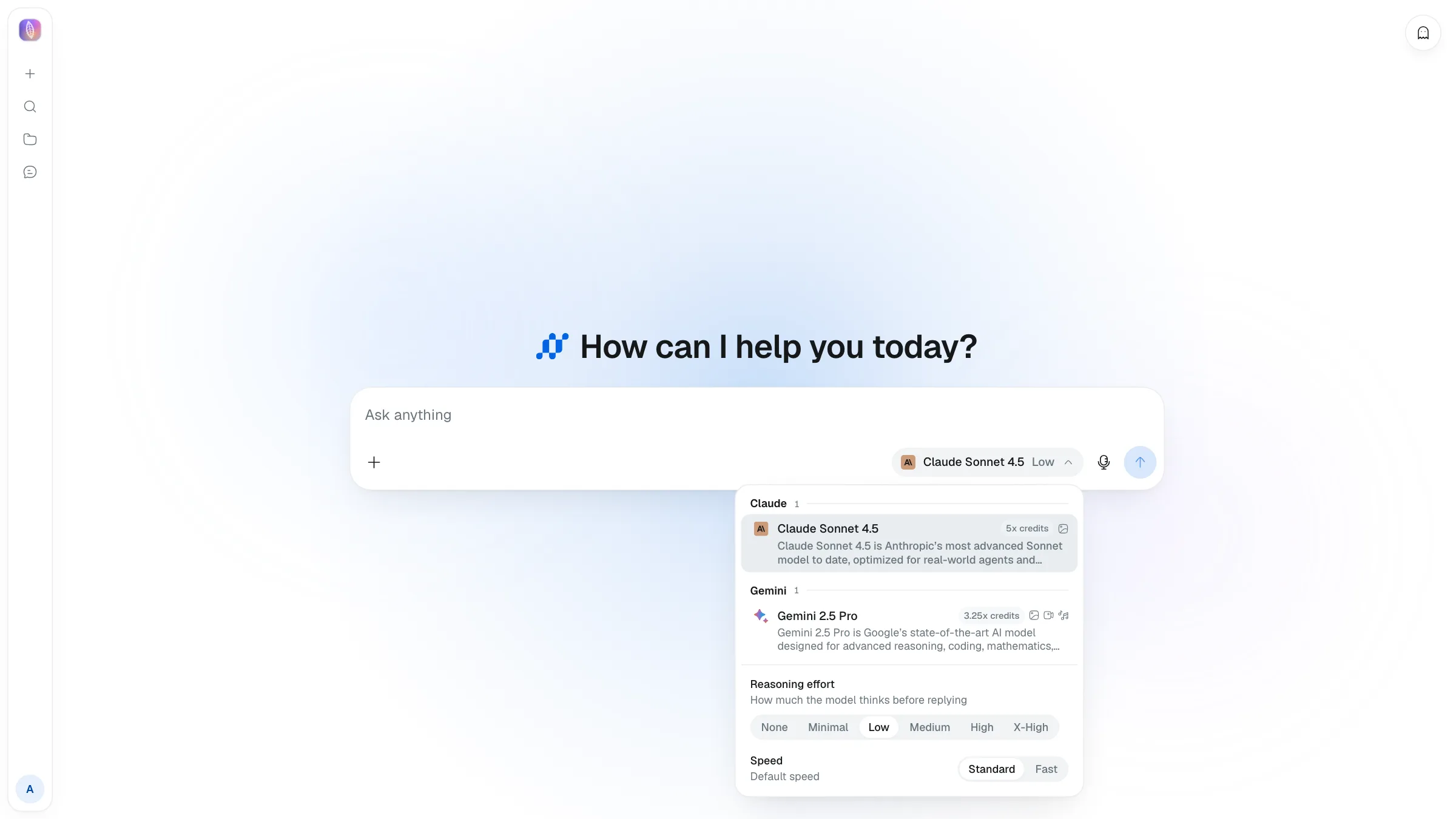
The model selector sits inside the composer on desktop and mobile. It shows the current model and opens a panel where you choose the model and tune how it responds. The choice applies to the messages you send next.
Pick a model
Click the model name to open the selector. It shows only models currently available to the organization. Locked models are hidden; an eligible Owner or Admin requests access from Console → Organization → Chat Models.
Set reasoning effort
The Reasoning effort control sets how much the model thinks before replying — None, Minimal, Low, Medium, High, or X-High. Higher effort can give better answers on hard problems but takes longer and uses more credit. Only shown for models that support it.
Choose a speed
Standard uses quality-first provider ordering; Fast prioritizes the highest-throughput route. Usage is charged at the provider-reported cost with no additional 1.5x fast-routing surcharge. Only shown for models that support it.
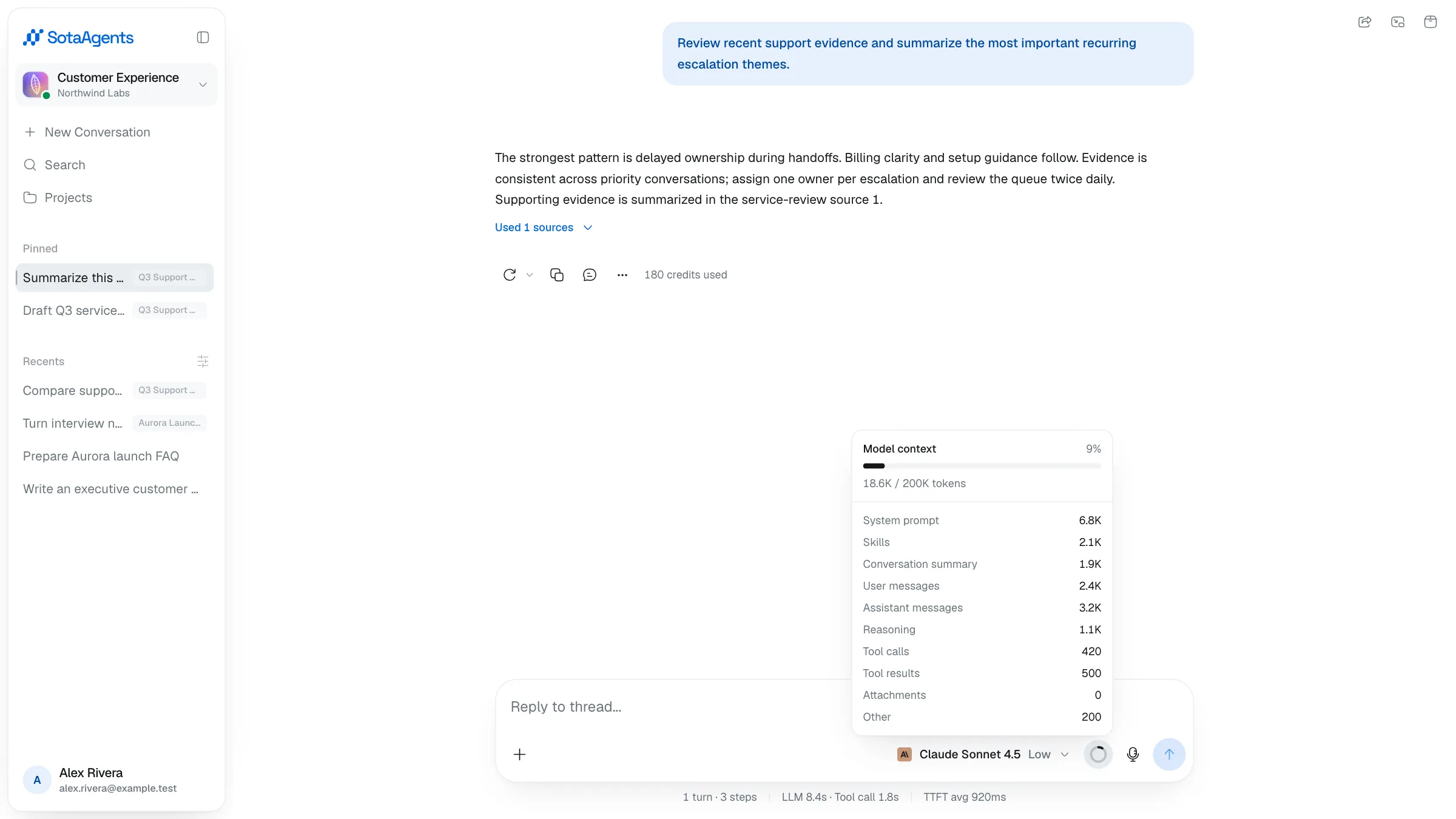
Turn statistics and model context#
Enable Stats for nerds and Show model context under Settings → AI Agent. The line below the composer shows turns, steps, LLM time, tool-call time, and average time to first token. The context readout shows total window usage and its system-prompt, message, attachment, tool-call, and skill breakdown.