
Artifacts panel
On this page
When the assistant produces a file — or when you open a citation — it appears in the artifacts panel on the right of the chat.
What opens here#
| Type | What you see |
|---|---|
| Generated documents | Word docs, spreadsheets, slides, and PDFs the assistant created — previewed with a download button. |
| Files & images | PDFs, images, video, audio, text, markdown, HTML, and CSV render directly in the panel. |
| Citation previews | The source document behind a citation, opened to the cited page. |
| Subagent transcripts | A named, read-only transcript of delegated work, including its task, streamed result, and final status. It remains available after history reload. |
Open an artifact
Click a generated file, citation badge, or named subagent chip in a message. The panel opens on the right.
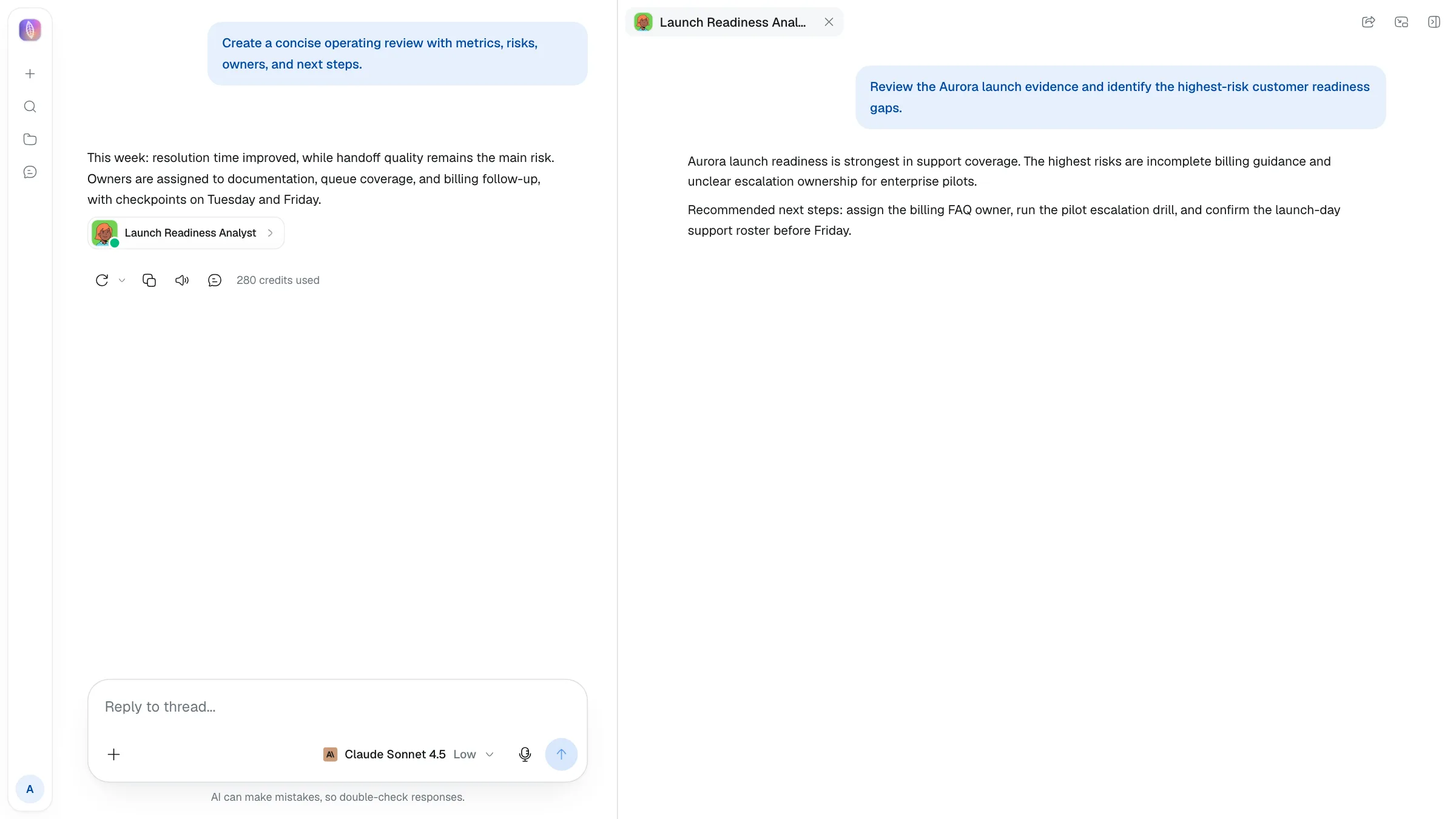
Read & navigate
Scroll a document or subagent transcript, page through a PDF, zoom an image, or play media — depending on the artifact type.
Skill and Office previews#
Use the breadcrumb at the top of the skill viewer to choose a file in the skill.
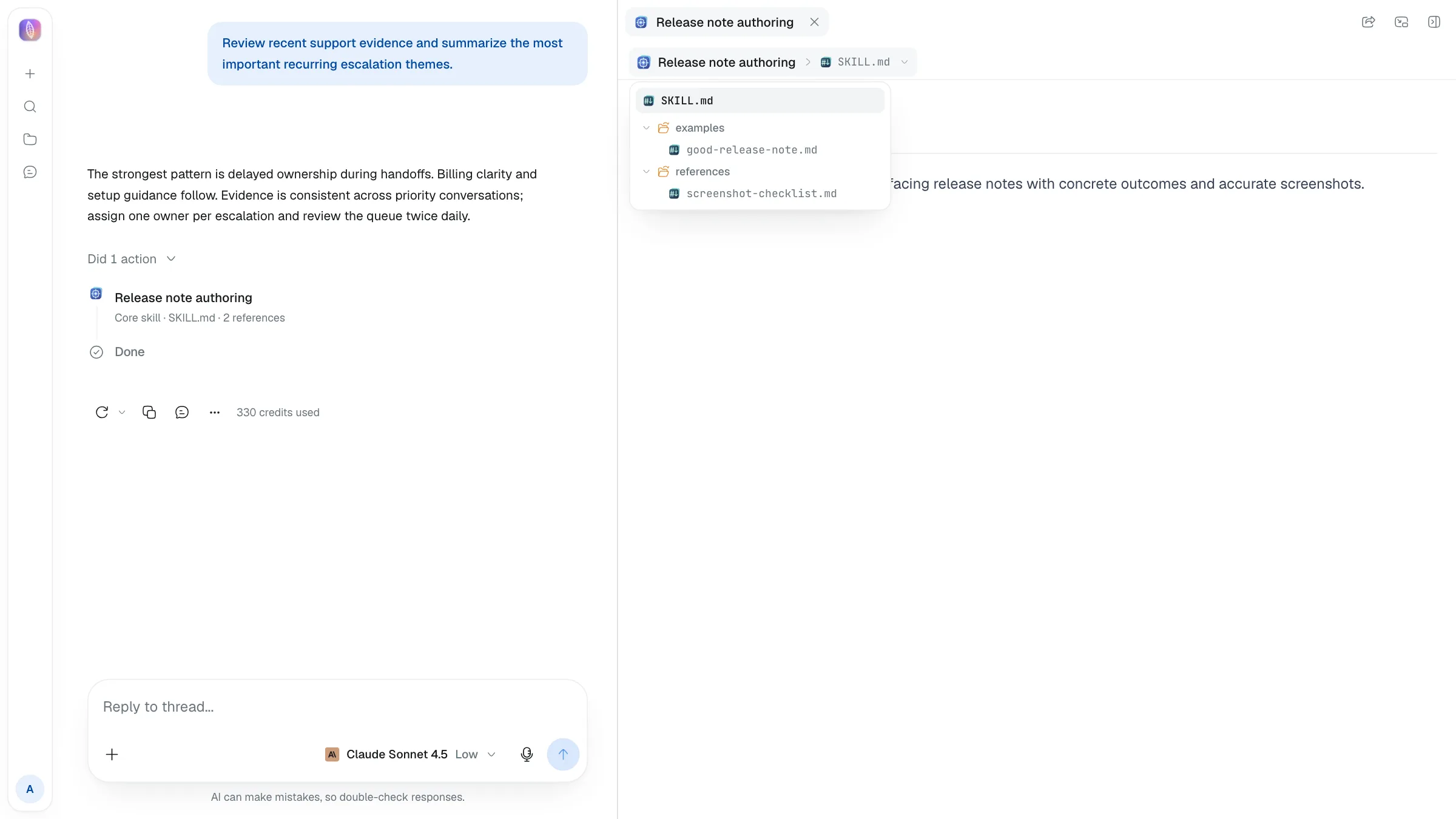
Downloaded files keep their original filename. Excel previews render embedded images, charts, and shapes. DOCX form previews preserve the form layout; filling changes the document body only, keeps headers, footers, and page geometry intact, and does not turn footnote markers into fields.
Download
Use the download button to save the file to your computer.