
Your first conversation
1
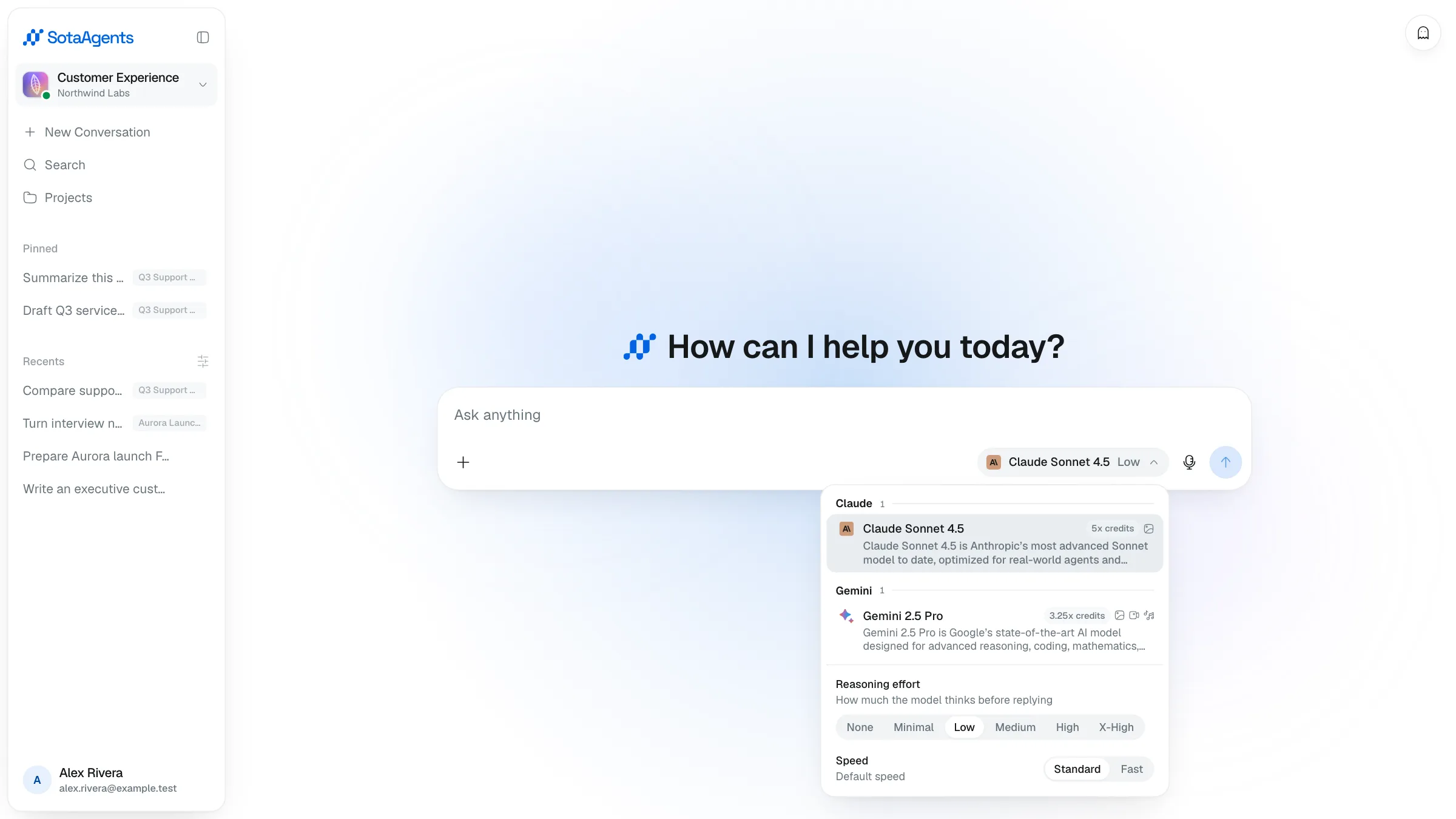
Choose AI model, Speed & Reasoning Effort
Select the AI model, Speed, and Reasoning Effort appropriate for the task:
- Reasoning Effort — controls the depth of reasoning before a response is generated. Higher effort produces more detailed responses but increases processing time.
- Speed — changes provider routing:
Standard(default) uses quality-first ordering;Fastprioritizes throughput. Fast routing has no added 1.5x surcharge.
ℹ
RecommendationIf no specific requirement exists, the default configuration is recommended.
2
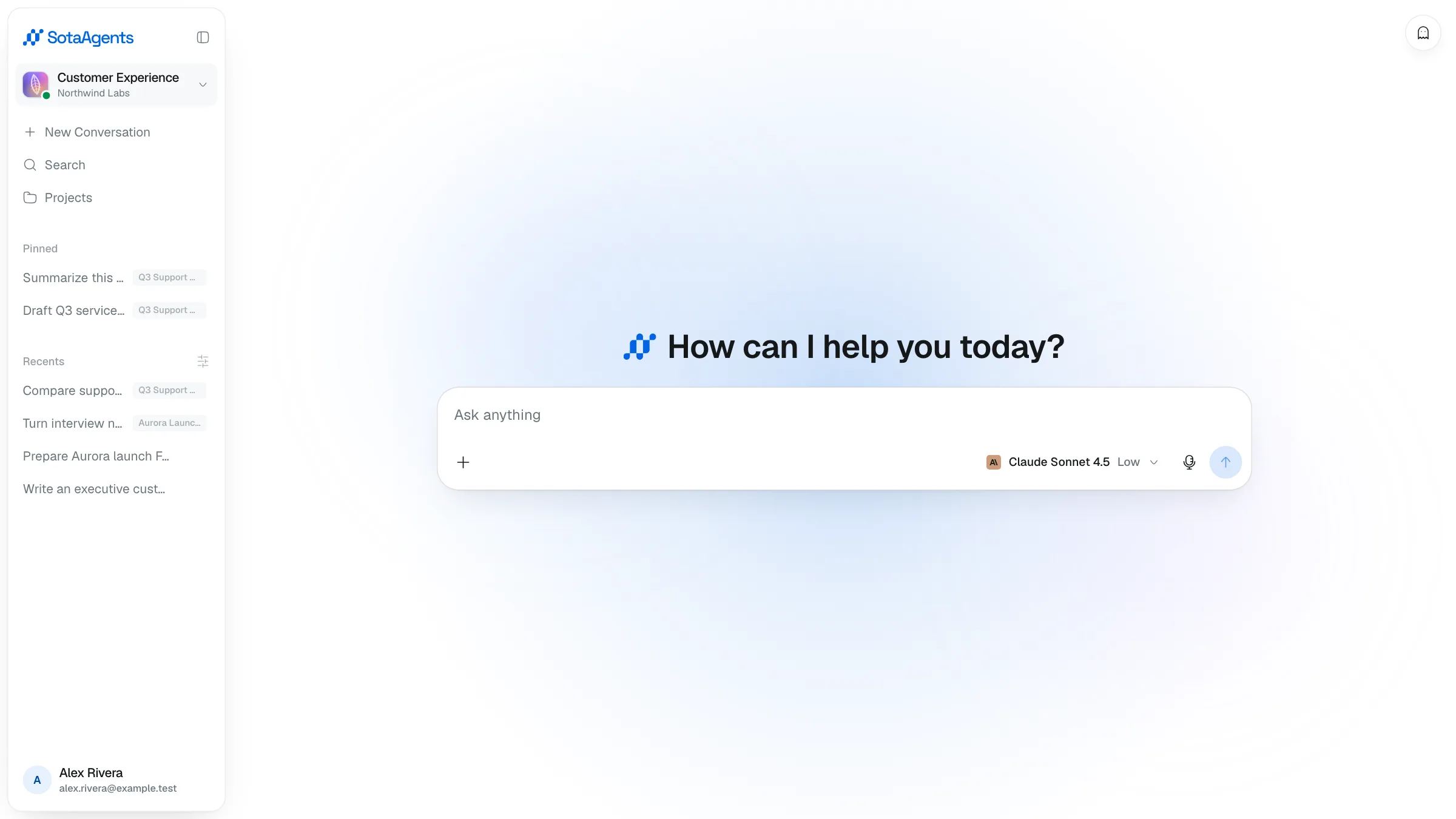
Enter your request
Enter the request as a question or a structured description specifying the goal, context, and desired output format.
3
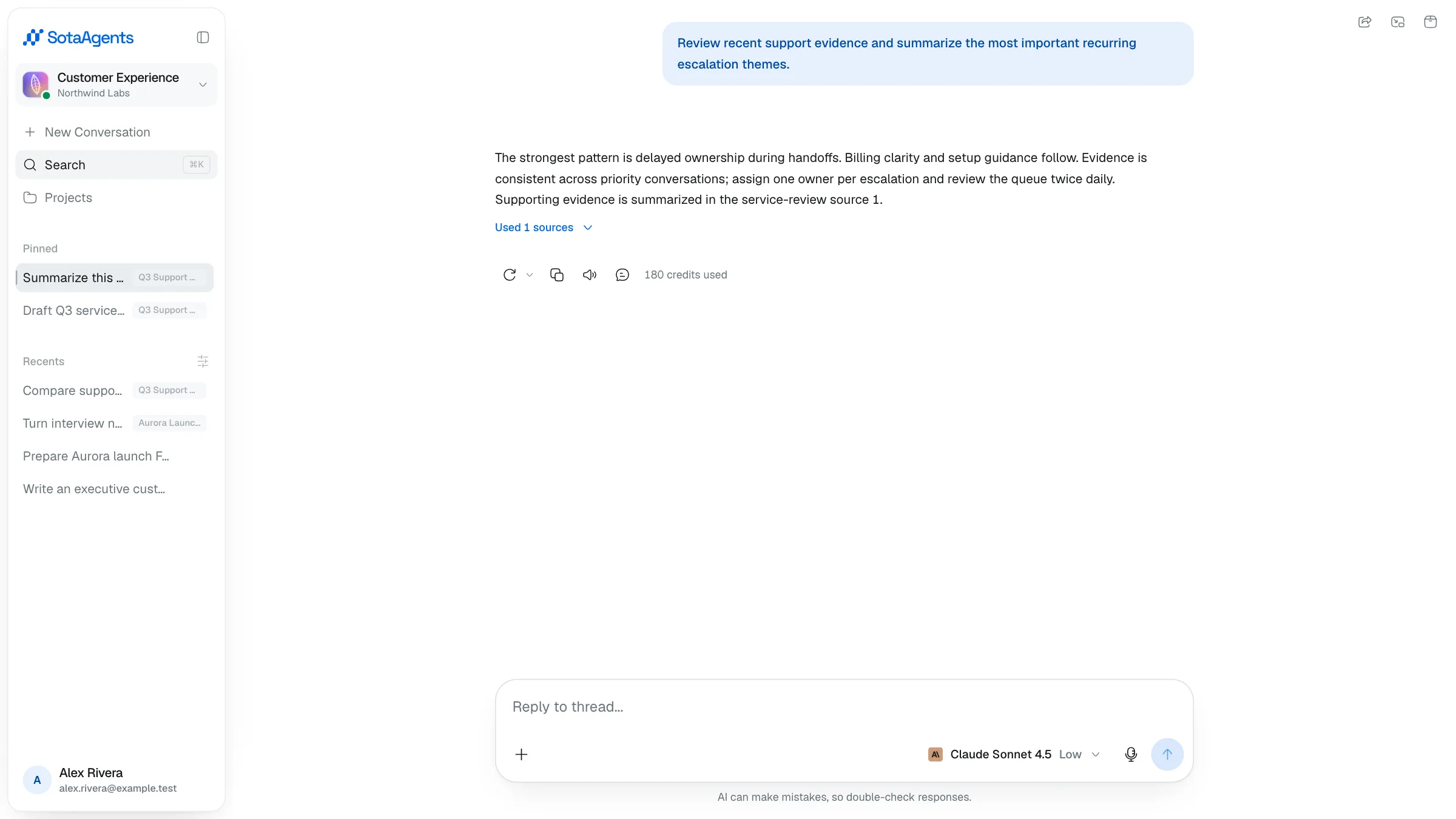
Review the result & continue
Review the response, request revisions as needed, then download the output file or continue the conversation to refine the result.
4
Attach files (if needed)
To attach a file, click the (+) icon on the chat input bar. Chat attachments are uploaded as Core conversation files and sent with that conversation; they are not automatically imported into the Knowledge Base and are not promised an OCR/indexing pipeline.
- Supported formats: PDF, DOC, DOCX, TXT, MD, XLS, XLSX, CSV, PPT, PPTX, PNG, JPG, JPEG
- Limits: up to 20 files per message, 100 files per conversation, and 100 MB per file