
Account & session
On this page
Light & dark theme#
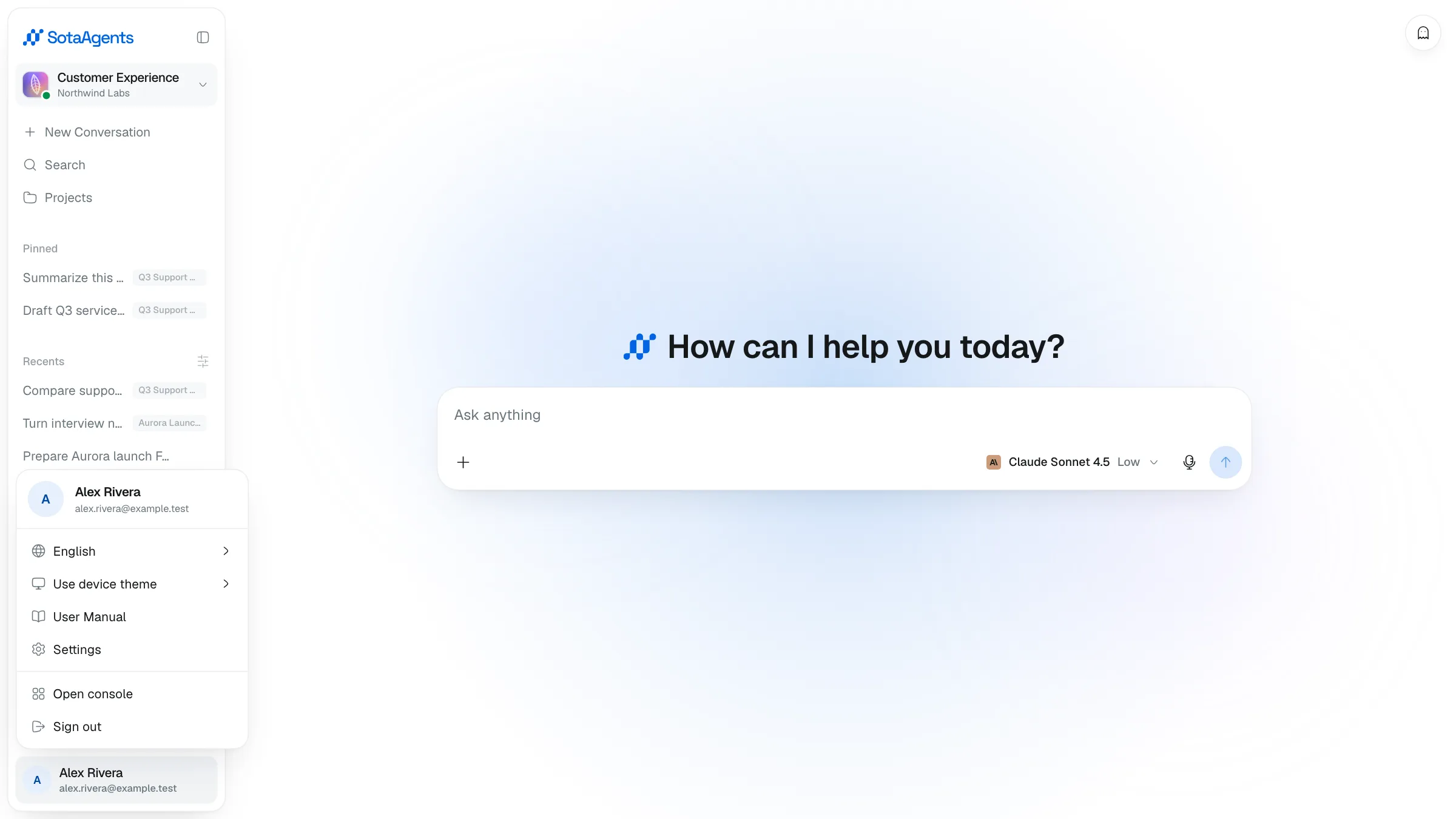
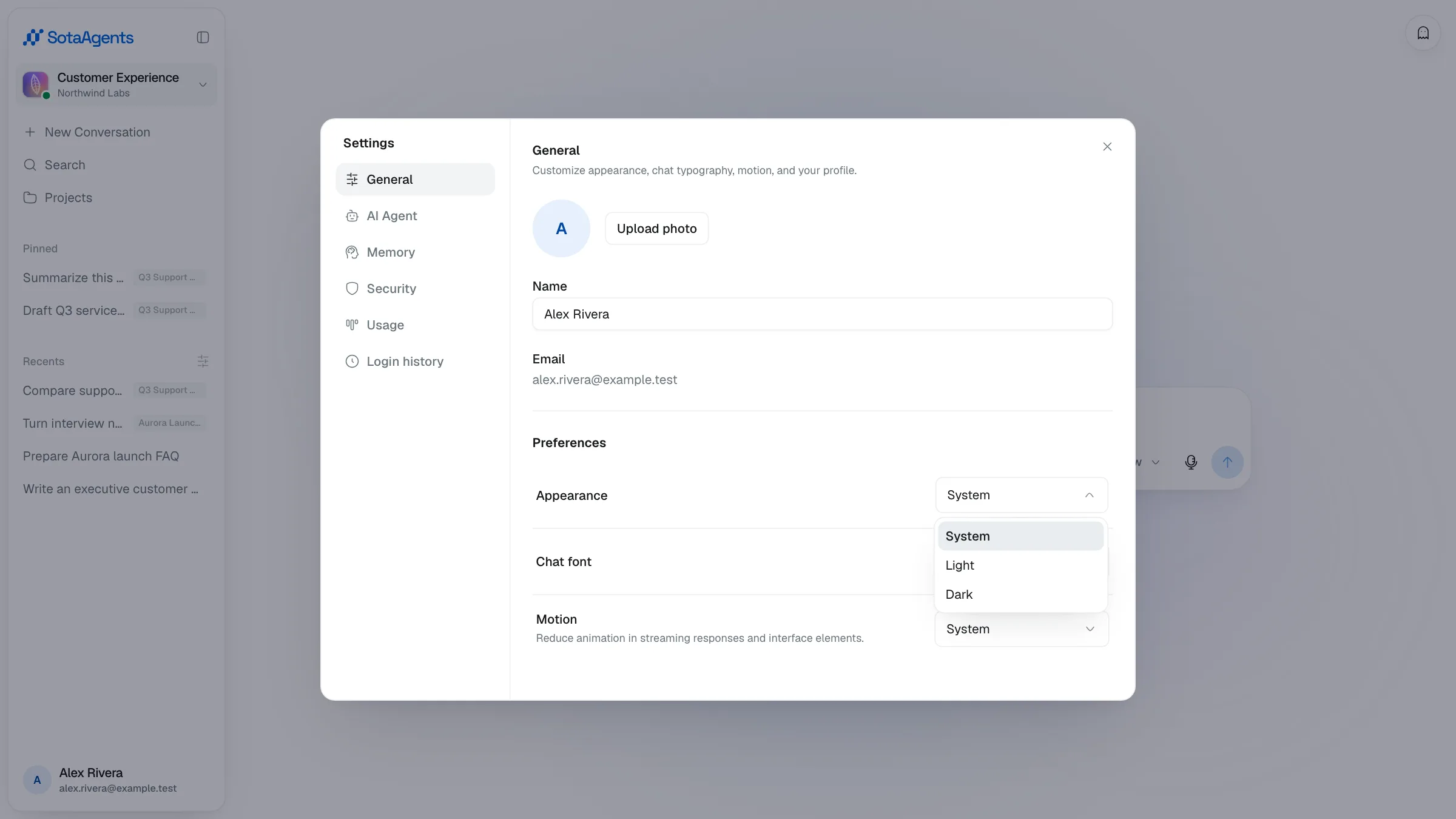
Open Settings → General and set Appearance to Light, Dark, or System. System follows your operating-system preference.
Reduced motion#
If your operating system is set to reduce motion, the interface honors it automatically — animations are minimized.
Model & session settings#
Choose the model, reasoning effort, and speed from the selector inside the composer on desktop and mobile. See Model & session settings.
Account & sign out#
Open the account menu at the bottom of the sidebar to see your name, email, and connection status. Click Sign out when you're done — every time on a shared computer.
Settings#
Open Settings from the account menu to manage General, AI Agent, Memory, Security, Usage, and — when supported by the deployed gateway — Login history.
Personal Memory#
The Memory tab lets admitted members control recall and learning separately, choose which categories may be learned, and review, correct, confirm, forget, import, or export private saved items. Incognito and guest/public sessions neither use nor write personal memory.
General and AI Agent settings#
Use the General tab to manage profile details, Appearance, Chat font, and Motion.
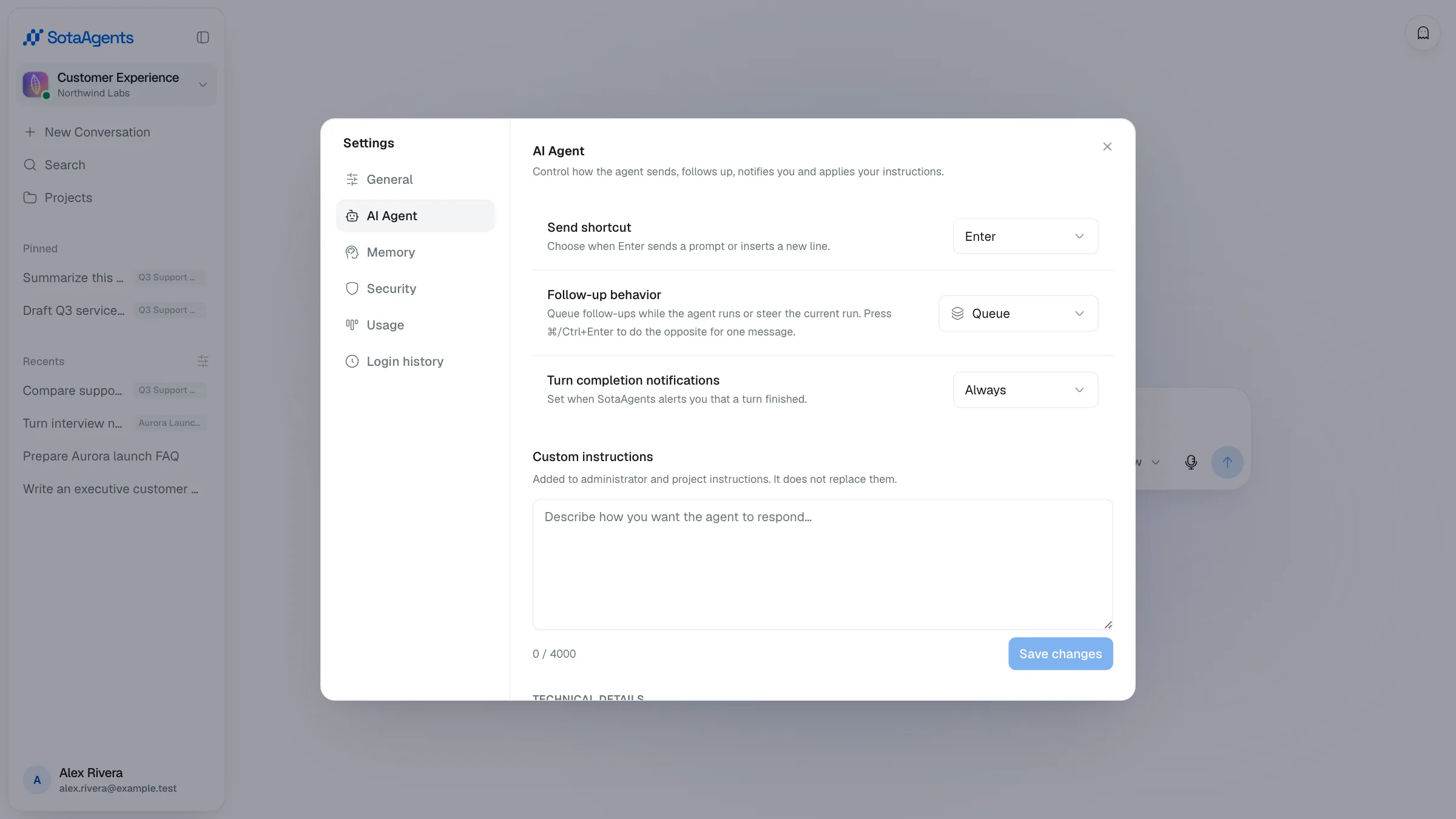
Use Settings → AI Agent to choose the send shortcut, Queue or Steer follow-up behavior, turn-completion notifications, custom instructions, Stats for nerds, and model-context visibility.
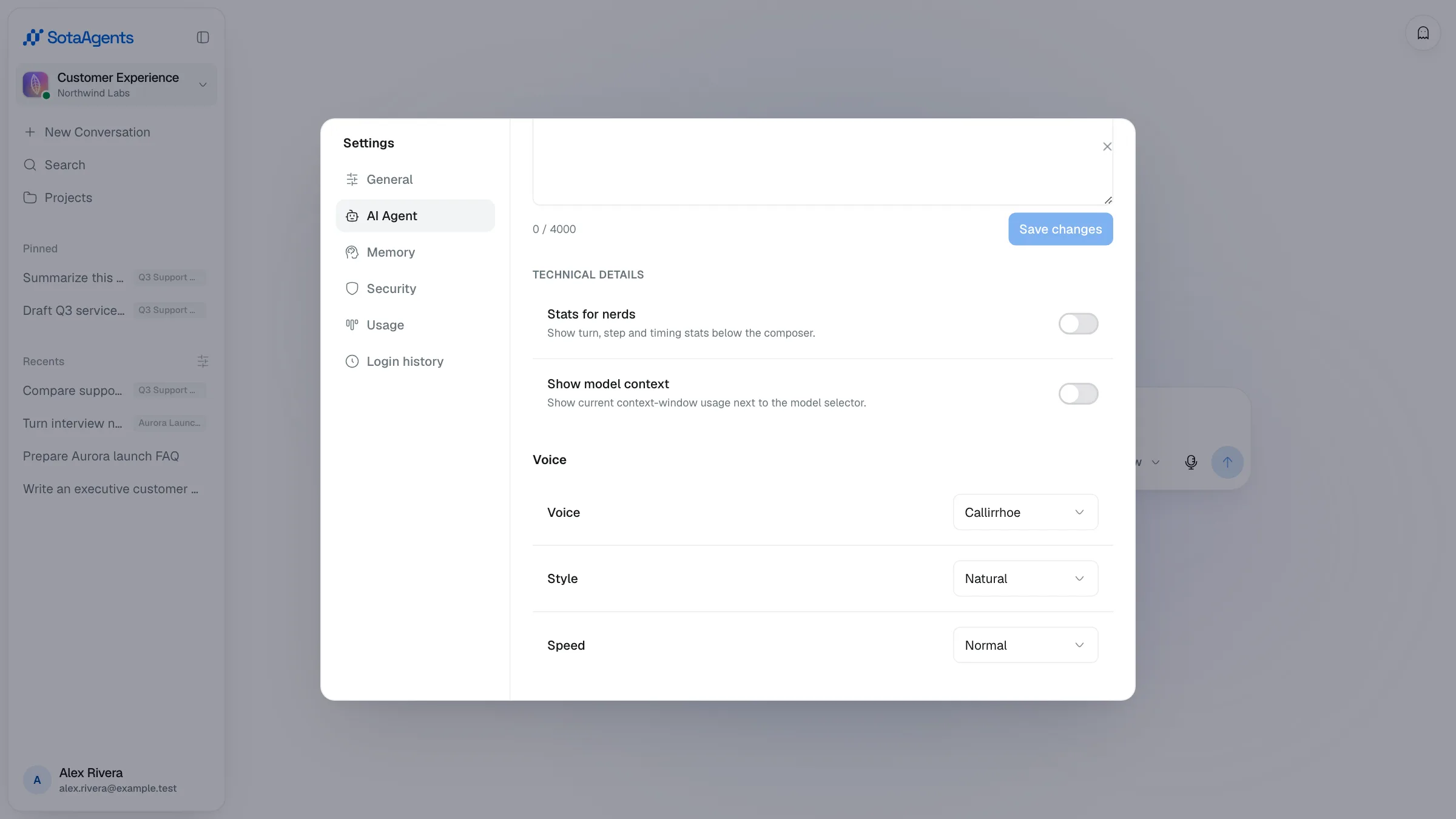
Open the Voice section to choose Voice, Style, and Speed for read aloud. Playback streams sentence by sentence, so it can begin before the full answer is ready.
Manage Personal Memory#
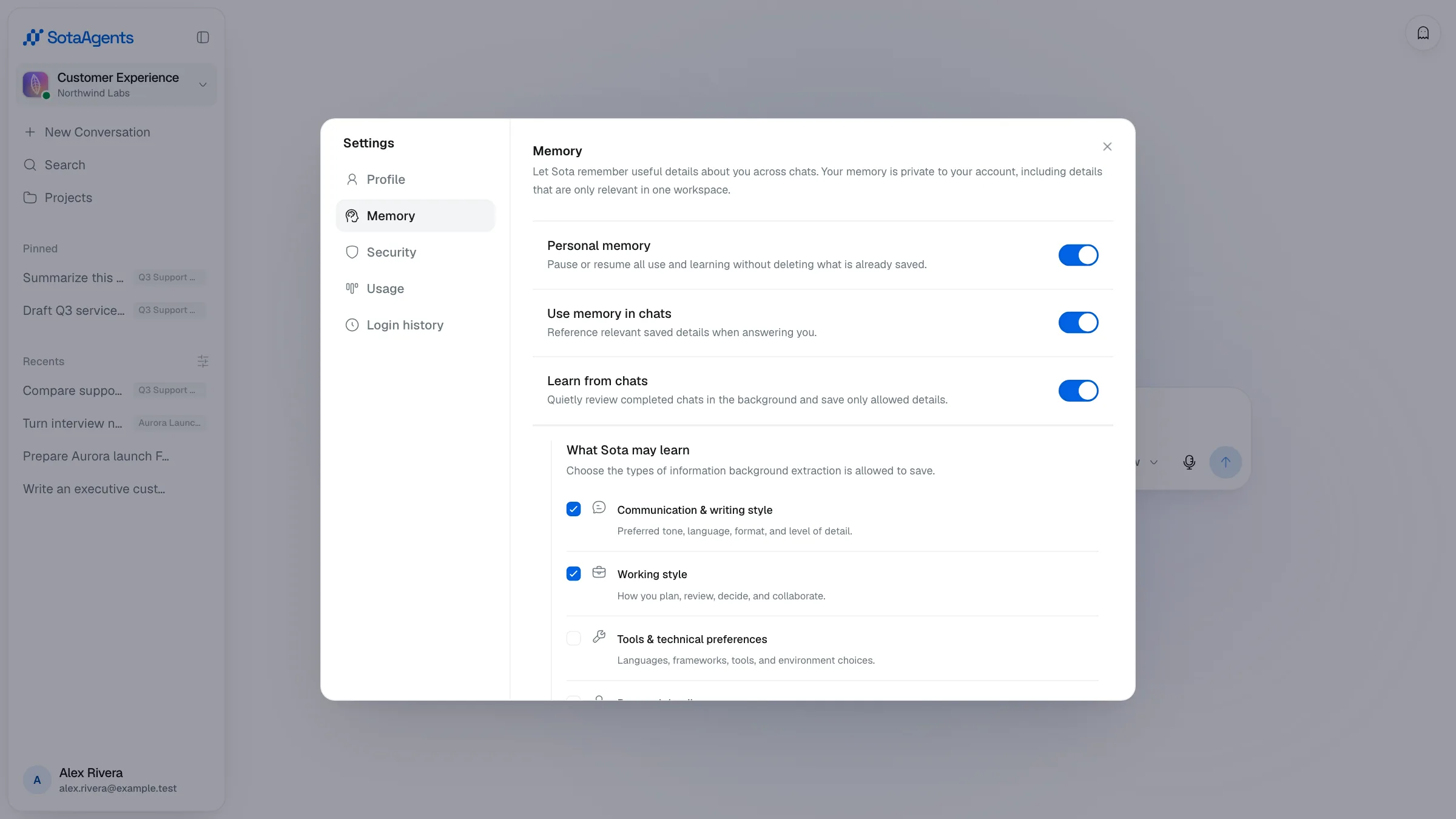
Open Settings → Memory. Personal memory pauses or resumes the feature without deleting saved items. Use memory in chats controls recall; Learn from chats controls background capture after completed chats. Category controls cover communication style, working style, tool preferences, personal details, and long-term goals. Turning a category off stops new automatic saves but does not delete existing items.
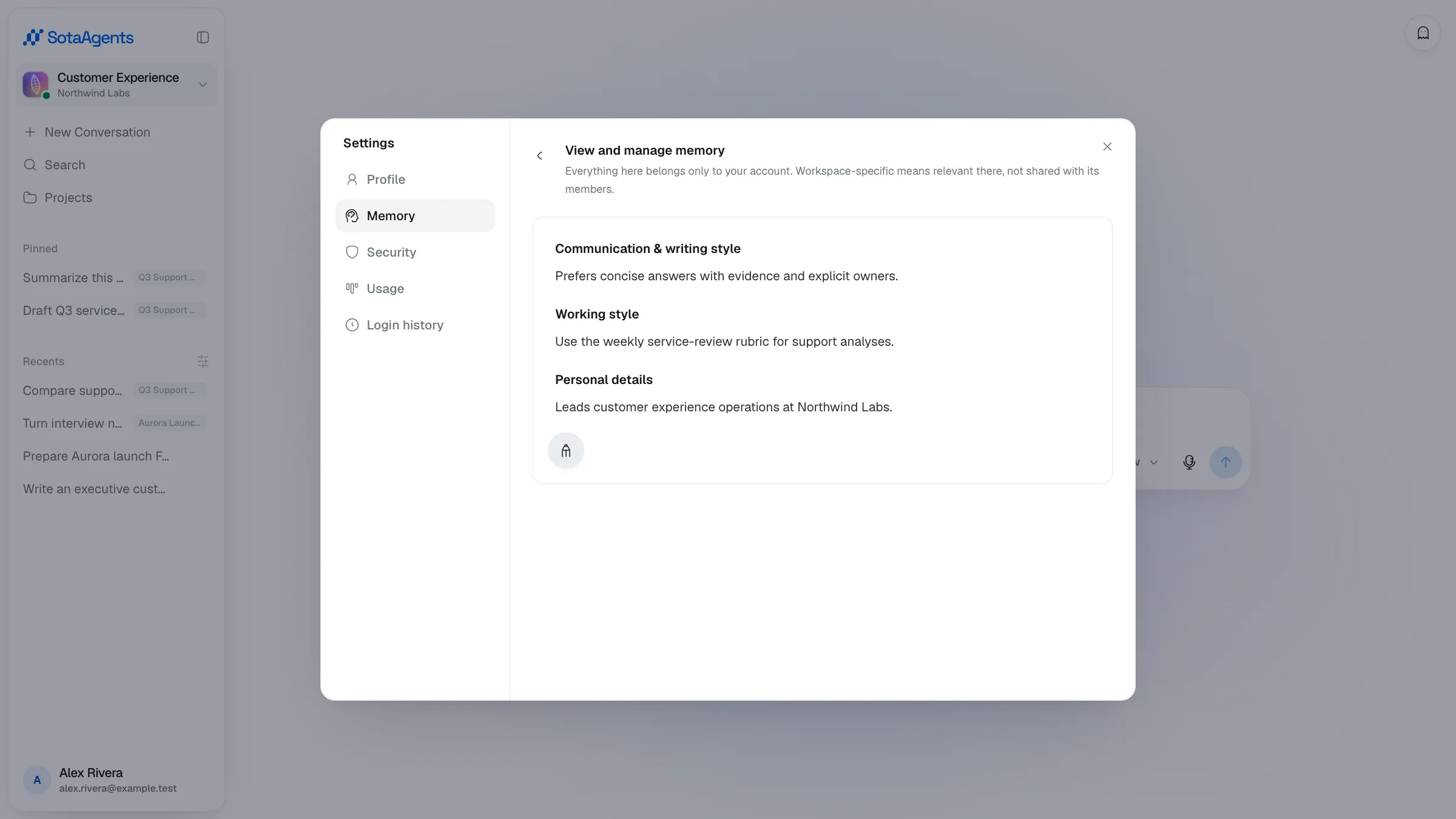
Use View and manage memory to inspect each item, edit incorrect wording, confirm an item that needs review, or forget it. Workspace-specific memory remains private to your account—it is relevant only in that workspace, not shared with workspace members. Memory activity records recent policy and item changes; export downloads JSON, while import previews content from another AI before adding it.
Two-factor authentication and login history#
In Settings → Security, enroll a TOTP authenticator, save the one-time recovery codes, review trusted devices, or disable 2FA after re-authentication. Login history appears only when the current gateway exposes that endpoint and shows recent sign-in activity; native OAuth availability can differ by desktop/mobile deployment.
View usage quota
Select the profile avatar at the bottom-left of the screen to view the remaining usage quota and credit balance.
Log out
Select the profile avatar menu at the bottom-left, then select Sign out to end the session.